Audit trail
Menu › Audit
What it’s for
The system records, on its own and always, who did what and when: every sale, every voided document, every price change, every register opening and closing, every login, every time someone exports information to Excel. This screen is where you look all of that up.
It answers three questions that had no answer before:
- Who touched this document? — the full history of an invoice, a product, or a customer, in order, with a name and a time.
- What exactly happened in that operation? — everything that moved because of one single action, end to end.
- How do I know this record can be trusted? — a report that verifies nobody altered what was recorded after it was recorded.
There’s nothing to turn on or configure. It records always, for every user, from the phone and the tablet too.
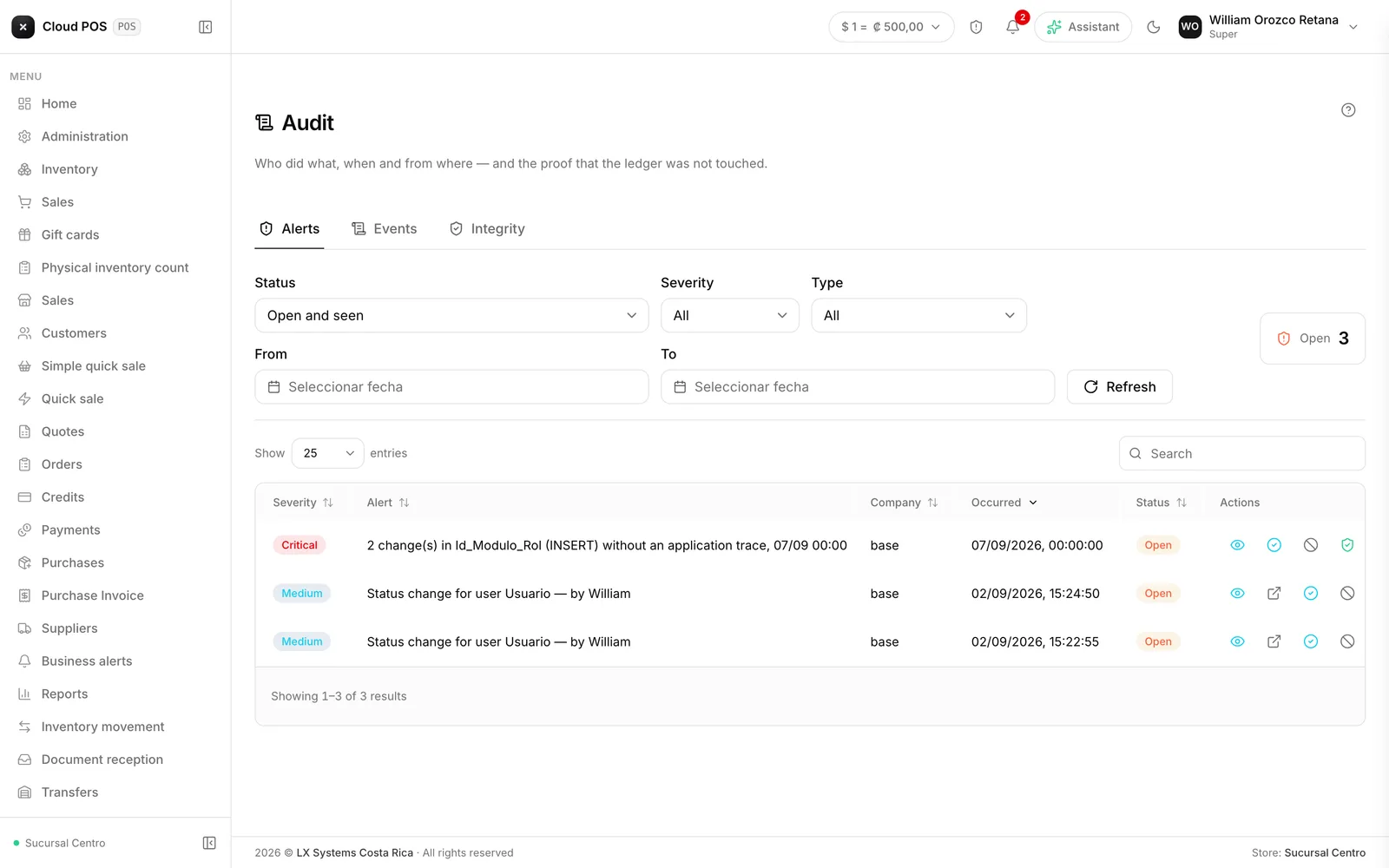
The screen has three tabs: Alerts, which is the one that opens first, with whatever the system found on its own; Events, which is the searchable record; and Integrity, which is the report you show an auditor.
Who can see it
It’s a menu section only visible to roles that have it enabled — out of the box, the same ones that can see Administration. You enable it like any other module, from Administration › Roles, and the user has to log in again to see it.
That said, ticking the module is not enough if the role isn’t an administration one: the search only answers to the Administrator and Super roles, or to a role that can manage the account settings. Any other role sees the menu item, gets in, and the screen brings back no data.
Treat it as a permission of trust. Whoever gets into the audit trail sees the movement of the whole business, including the logins and the actions of every other employee. Normally only the owner or whoever runs the business has it, and nobody else.
The Alerts tab
It’s the one that opens first, because it groups what the system found on its own without anyone having to go looking for it. Six security checks run on their own, every day:
- Unusual discount. A manual discount well above what’s normal, in percentage or in amount.
- Voided outside business hours. An invoice, a receipt, or a credit note voided outside that store’s usual hours.
- Several failed access code attempts. Either from the same user or from the same connection.
- Unusual data export. Someone took a far larger number of rows out of the system than usual — to Excel, to PDF, or by copying them.
- Permission change. A role or a user was created, deleted, or had its permissions changed.
- A change that didn’t come through any known screen. Something in the business changed without going through an identifiable process in the system.
Every alert can be marked as seen, dismissed, or resolved with a comment, the same as in Business alerts. It’s a security panel, not a business one: think of it as the house alarm, not as how sales are doing.
Searching the record
Pick the date range
From and To are required and start on today. If you don’t know the exact date, start with the month. A single search can’t span more than three months: to review half a year, do it in stretches.
Narrow it down
By User, by Level, by Action, by Entity (what it was done to), or by Result. In the free search box you can type a document number to go straight to it.
Hit Search
You get one line per thing that was done, newest first: date and time, user, action, what it was done to, how it turned out, and from which device.
Open the detail
With the eye icon, or by tapping the date on the line. The detail tells you who did it, when, from which device, and how it turned out.
For the before and after, open the history
From the detail, history of this record. The lines on that list do carry what changed: field, before, and after — only what actually changed, not the whole record.
The User, Action, and Entity dropdowns fill up with whatever showed in the last search. If someone isn’t on the list, they did nothing in that date range.
Results export to Excel with the same icons as any other table in the system. That export gets recorded too, under your name: whoever audits is audited as well.
If you see the notice saying only the first results are shown, the table doesn’t have them all. Narrow the date range before exporting, or the report comes out incomplete: one search brings back up to 500 lines, so raising the row limit past that changes nothing.
The three possible outcomes
Every line says how the attempt ended:
OK. It went through.
Error. It was attempted and something failed halfway.
Denied. The system didn’t allow it, almost always because that user is missing the permission. Filtering by Denied is useful for two opposite reasons: spotting someone insisting where they shouldn’t, and realizing an employee is missing a permission they actually need to work.
Following a whole operation
A single action usually moves several things at once. Charging a sale issues the document, deducts inventory, records the payment, and sends the receipt to the customer.
All of it stays tied together. From the line, the second icon — see everything in this trace — opens the whole chain, in order, from the tap on the screen to the last effect. It’s how you answer “why did this product’s stock drop yesterday at 3?” without piecing the puzzle together by hand.
And inside an event’s detail, history of this record shows everything that was ever done to that invoice, that product, or that customer.
Both lists search within the date range you queried. If the operation started the day before, move the range back and search again.
One clarification that saves misunderstandings: the before and after exists for the records that keep a change history — customers, users, roles, payment methods, registers, receipts, purchases, stock entries, payments, credit notes, gift cards. For anything else, a product for instance, the system records who touched it and when, but not the previous value.
The level of each entry
Every line carries a level, which says how important the fact is and also how long it’s kept:
| Level | What it records | How long it’s kept |
|---|---|---|
| N1 | Money, documents, logins, permissions, and information leaving the system | Five years, which is what tax rules require |
| N2 | Day-to-day decisions | One year |
| N3 | Context: moving from screen to screen | Three months |
The integrity report
A record that can be edited proves nothing. So on top of recording, the system seals every hour of activity: if somebody later added, removed, or modified a line, that hour stops matching and it shows.
The Integrity tab shows three numbers at the top — how many hours are sealed, how many are intact, and how many have a problem — and below them the sealed hours of the last three months, newest first, with one of three states per hour:
| State | What it means |
|---|---|
| OK | That hour is exactly as it was recorded. Nobody touched it. |
| Altered | After it was sealed, activity in that hour was added, removed, or edited. |
| Broken chain | A whole hour is missing, or one too many showed up. |
If everything checks out, the screen says so in one line. That’s what you show an auditor or an accountant. Verify again re-runs the check on the spot, and Export report downloads it to Excel.
If something doesn’t add up, the screen highlights the first altered hour in red — that date and time marks when it happened. Report it right away and don’t delete anything: the report is the evidence. A state other than OK doesn’t necessarily mean bad faith, but it always means somebody did something outside the application.
Good to know
The record can’t be edited or deleted. Not from the screen, not by the administrator, not by us. It’s built so entries can only be added. If something was done wrong, you correct it in the module it belongs to, and that correction is recorded as one more line.
The date and time come from the system, not from the device of whoever did it. Changing the tablet’s clock doesn’t change what gets recorded.
Passwords and PINs are never stored there. When a secret changes, the record notes that it changed and who changed it — never the value.
It records what gets done, not what gets looked at. Opening a screen or running a report doesn’t fill the record; taking information out of the system — exporting, copying, printing — does, because that’s the first thing anyone checks when there’s a suspicion that business information went where it shouldn’t.
A line with no user is not an error. It means it didn’t come through the application with an open session: an automatic process, or a login attempt before anyone identified themselves.
Every search is bounded by dates, and capped at three months. The record piles up years of activity, and an unbounded search would slow down the whole operation.
It started filling up the day it was switched on. Anything before that isn’t there and can’t be reconstructed.
The audit trail is not a backup. It keeps who did what, not a copy of the business to restore. They’re two different things and you need both.