Stock by warehouse
Menu › Inventory › Stock by warehouse
What it’s for
When the business has several warehouses or branches, this screen answers the usual question: where is what I’m looking for.
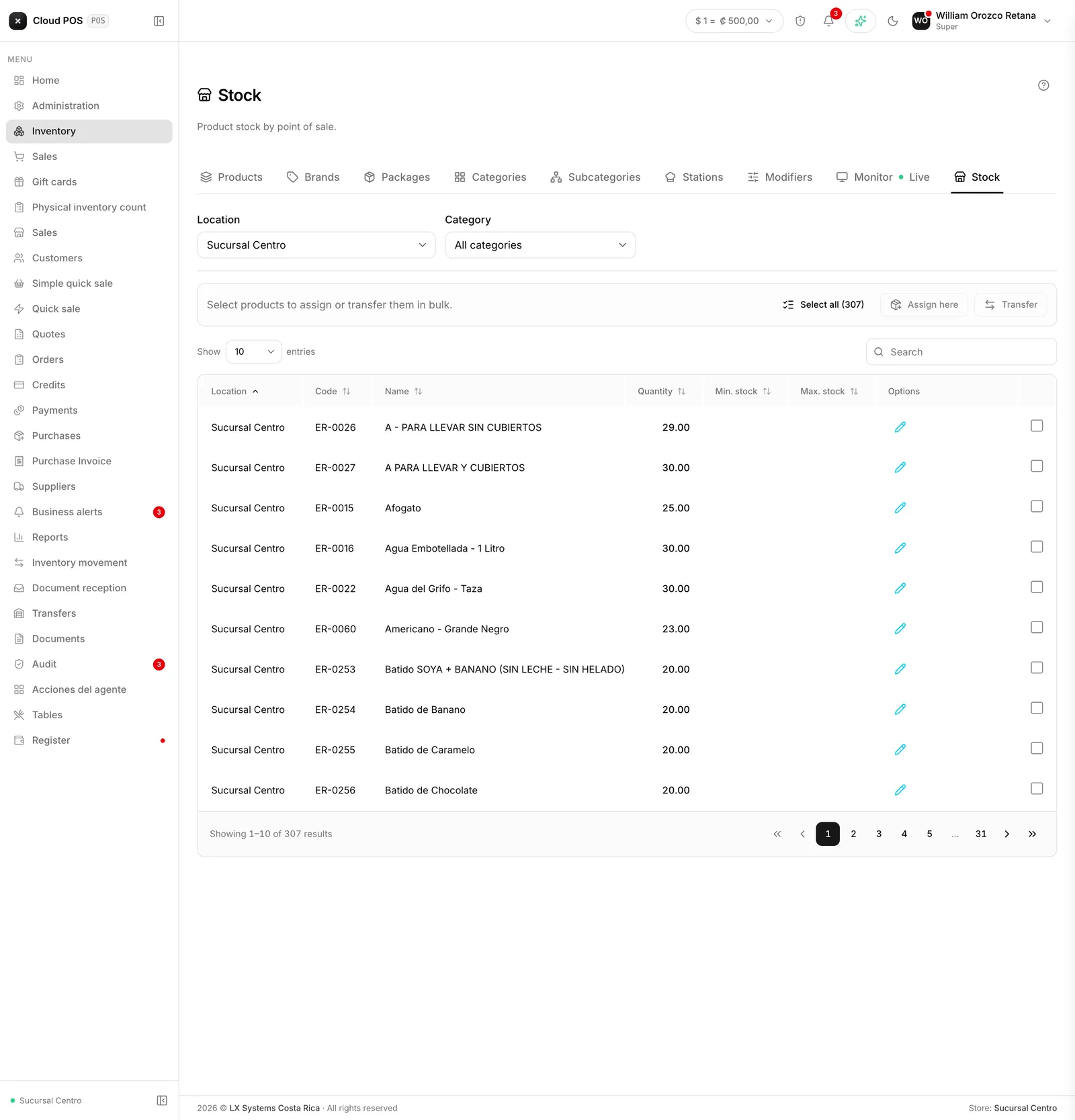
How to read it
Each row is a product and each column a location. The total is the sum. It’s useful for seeing at a glance whether it’s better to transfer instead of buy.
Assigning or transferring several products at once
When you pick a specific location in the filter (not “All warehouses”), the list shows the whole active catalog, including products that don’t have stock recorded there yet. Check the ones you need with the checkbox on the right and use the bar that appears above the table:
- Assign here creates, at zero, the stock record for the checked products in that location right away — typically when opening a new warehouse or store, or after noticing a group of products was never registered there.
- Transfer sends the checked products (the ones that do have stock) straight to New Transfer, already loaded, so all that’s left is confirming quantities and destination.
Things worth knowing
With “All warehouses” selected, the list only shows locations that already have something on record — it’s the view for comparing stock across warehouses. To see and fill in what’s missing, pick the specific location instead.
To move merchandise between locations, use Transfers: that leaves a trail. Editing the quantities by hand on each side doesn’t.
If the business doesn’t separate warehouse from store, the screen still shows up, but it’s called “Stock” instead and splits by store rather than by warehouse. It only stops making sense if the business has a single location: there’s nothing to split there.