Getting started
The minimum you need to start using the system on day one.
Sign in with your user
Type your username and your password. If it’s your first time, your business administrator gives them to you.
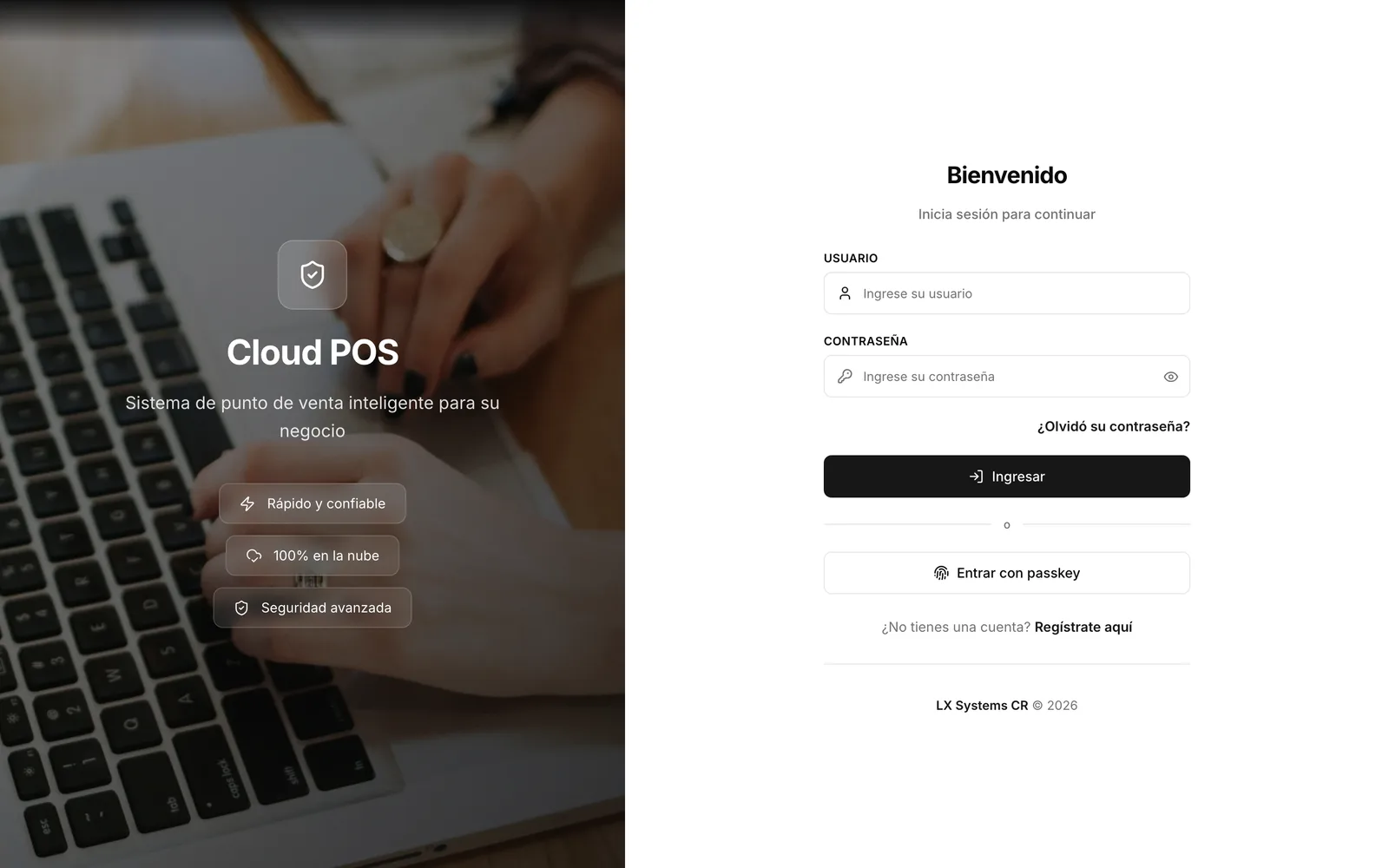
The sign-in screen. Choose the store
This only shows up if you work at more than one branch or register. If you only have one, the system picks it for you and you’ll never see this screen.
Land on the home screen
This is your starting screen. What it shows depends on your role.
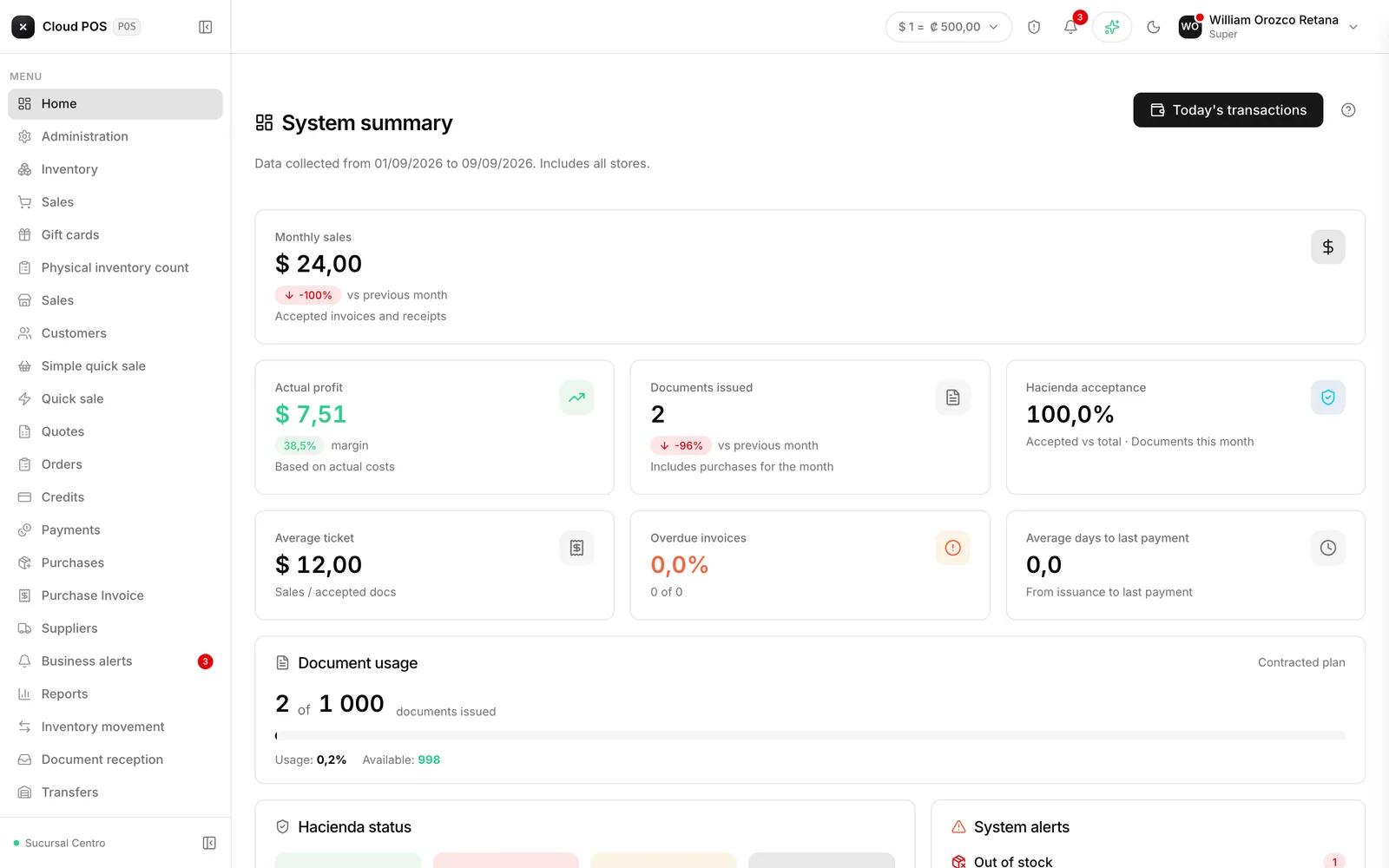
The home screen.
If you forgot your password
On the sign-in screen, tap Forgot your password? and type your username — not your email. The system sends a temporary password to the email on file, and once you sign in with it, it asks you to set a new one.
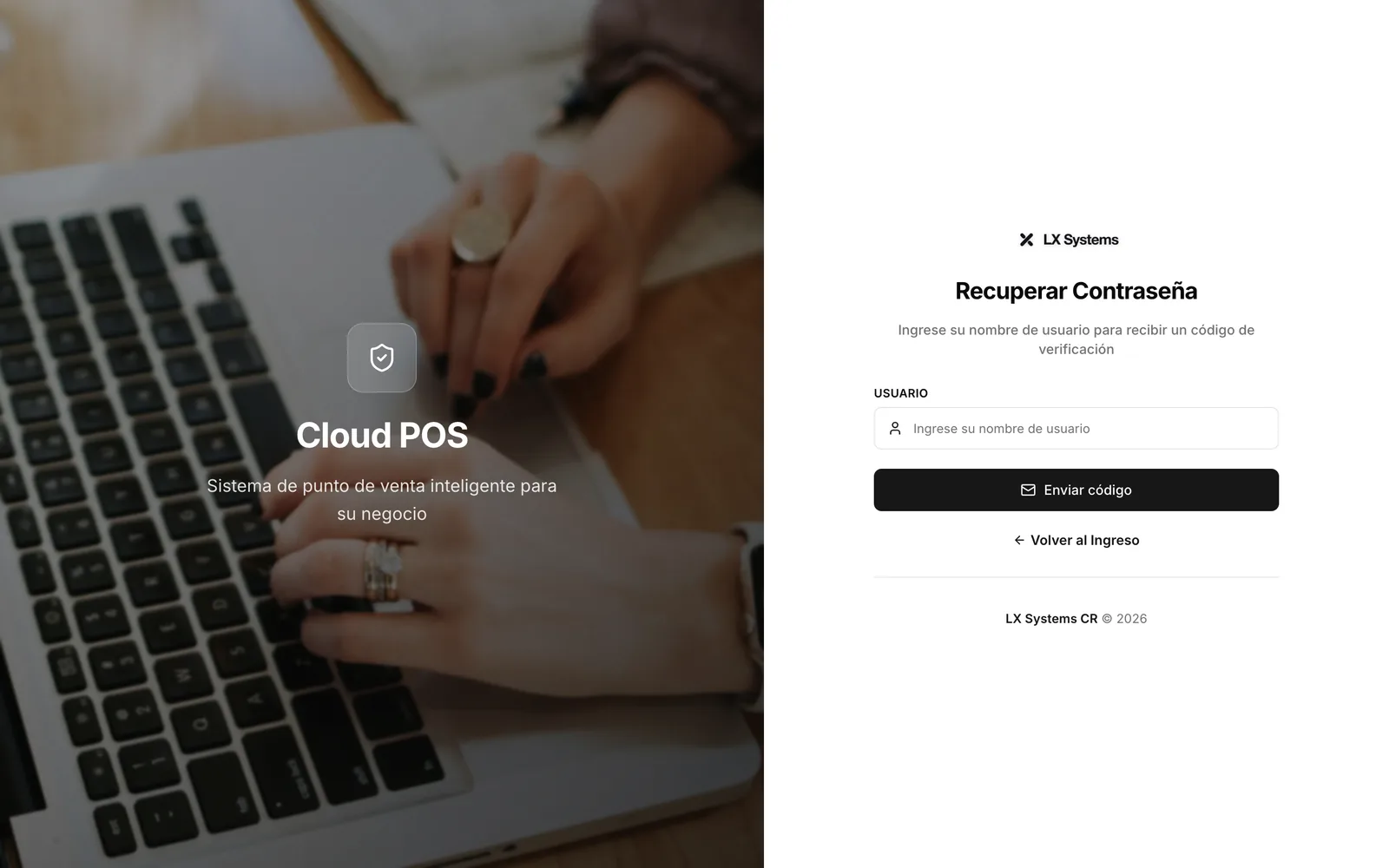
If the user doesn’t exist, or exists but doesn’t have an email on file, the system tells you with a message in red — it doesn’t send anything anywhere. If the message was green and the email still hasn’t arrived after a few minutes, check your spam folder before calling support.
What you see on the home screen
Not everyone sees the same thing, and that’s on purpose.
If your role doesn’t have permission to see the business indicators, home shows you quick access: a button for each module you use every day. You’re not missing data and the screen isn’t broken — sales figures, margins, and profit are reserved for administrative roles.
If your role does have that permission, home shows the full panel: sales for the month, profit, documents issued, acceptance by Hacienda, stock alerts, trend charts, and your best-selling customers and products.
Accounts receivable and payable are visible to anyone with a session, whether or not they have access to the indicators.
Good to know
“Access denied” is not a glitch. If you saved a direct link to a module and your role no longer has it enabled, the system sends you back to home with that notice.
Take the yellow certificate warning seriously. When it shows up, it means the certificate that signs your electronic invoices expires in 30 days or less. If it expires, the business can no longer invoice. Tell your accountant or us as soon as you see it.
Your store stays fixed for the session. To switch registers, sign out and sign back in.
If it tells you that you have no points of sale assigned, there’s nothing you can do from there — that’s configuration your business administrator handles.