The home screen
Menu › Home
What it’s for
This is your starting point. And it shows different things depending on your role, which is what confuses people most at first.
The two versions
If your role doesn’t include seeing the indicators — the typical case for a cashier — home shows you quick access: a button for each module you use every day. You’re not missing anything and the screen isn’t broken. Sales figures, margins, and profit are reserved for administrative roles, and that’s deliberate.
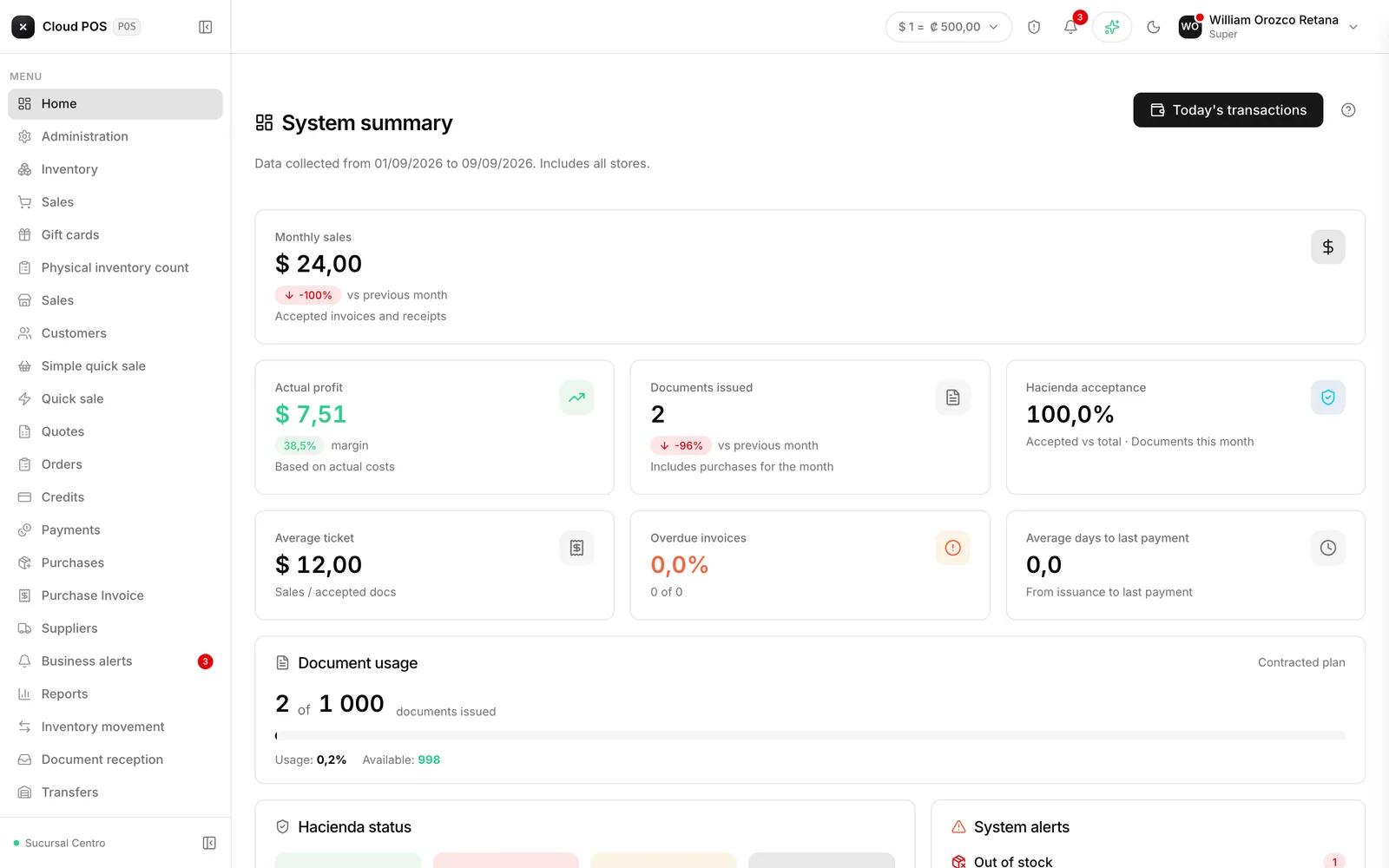
If your role does include them, home shows the full panel:
- Sales for the month, profit and margin, documents issued, average ticket.
- Status with Hacienda: how many receipts were accepted, rejected, or are in process.
- Alerts: products out of stock, low stock, overdue invoices, and rejected documents.
- Sales trend for the month, day by day.
- Top performers: best customers, best-selling products, and customers who haven’t bought in more than 30 days.
- Sales by store (only if the business has more than one point of sale): how much each one sold, its share of the total, documents issued, and average ticket.
Accounts receivable and payable show up below, and those are visible to anyone with a session, whether or not they have access to the indicators.
Today’s transactions
The button at the top opens a summary of what’s been collected today: total collected, how much was cash versus credit, how many transactions, and the breakdown by payment method.
It’s useful for balancing the register without leaving the screen. And if there were rejected documents, it shows them in red: that’s money you collected but whose receipt didn’t go through cleanly with Hacienda, so it’s best to resolve it the same day.
Good to know
“Access denied” is not a system glitch. It shows up when someone comes in through a saved link to a module their role no longer has enabled, and the system sends them back to home with that notice.
Take the yellow certificate warning seriously. When it shows up, it means the certificate that signs your electronic invoices expires in 30 days or less. If it expires, the business can no longer invoice. Tell your accountant or us as soon as you see it — renewing it takes days, not hours.
Some businesses see a reduced version of the panel, with certain Hacienda figures marked as “Not applicable.” That depends on the plan they’re on, not on anything you can change from the screen.