Signing in with a passkey
Menu › your name (top right) › My passkeys
What it’s for
A passkey lets you sign in with Face ID, Touch ID, or your device’s security key, without typing your password every time. You register it yourself, without asking an administrator for anything — anyone with a user account can have one.
How to register it
Open My passkeys
Tap your own name, top right, and choose “My passkeys” — it’s right next to “Change Password”.
Add the passkey
Press Add passkey and follow whatever your device asks for: your fingerprint, face recognition, or your operating system’s code. That stays between you and your device — the system never sees or stores it.
Give it a name you'll recognize
If you’re going to have more than one (your laptop, your phone), a name like “My work laptop” helps you tell them apart later, especially when it’s time to revoke one.
How to sign in with it
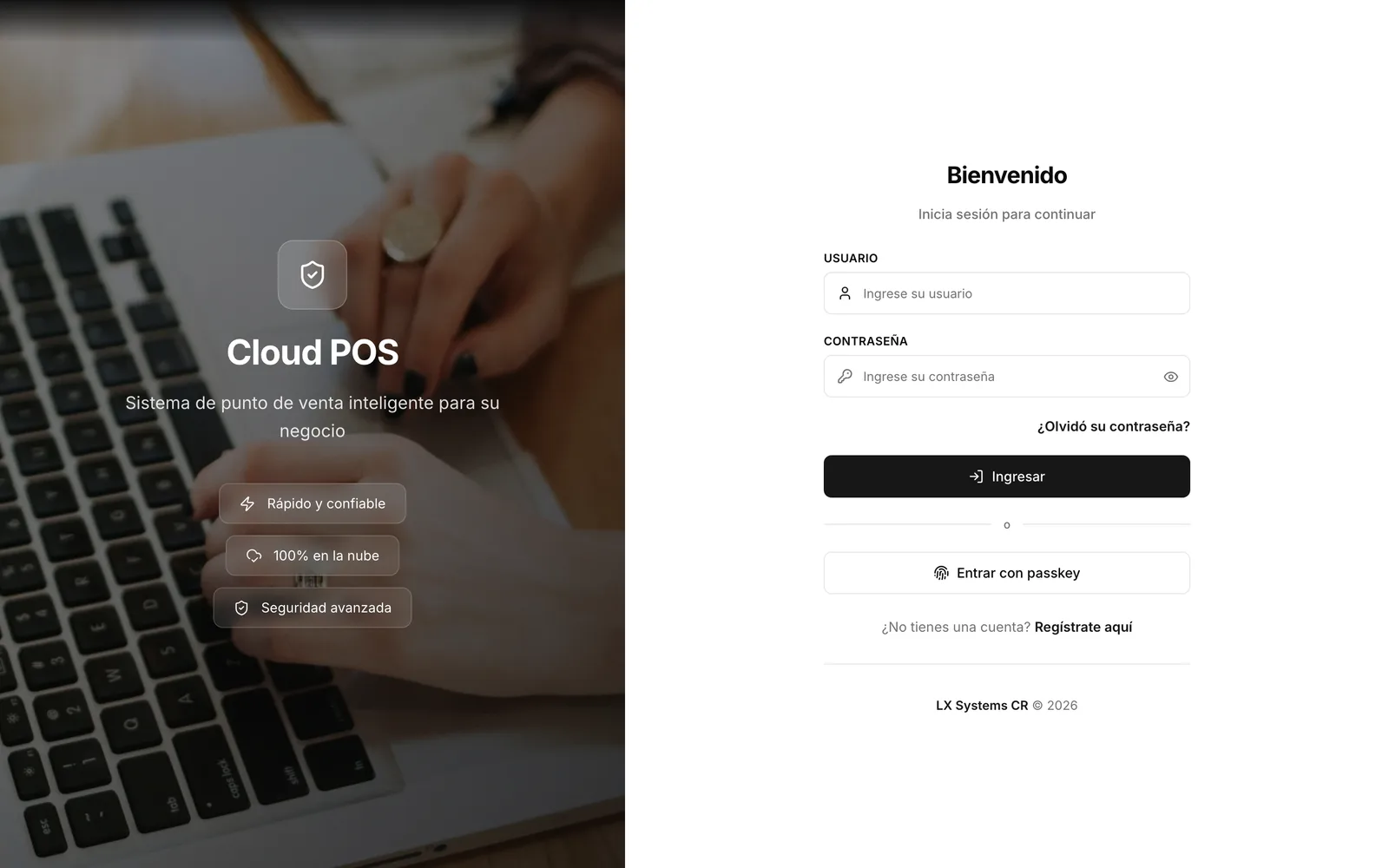
On the sign-in screen, next to the usual form, there’s a button to sign in with a passkey. When you tap it, your device asks for the same verification you used when you registered it — Face ID, Touch ID, or the security key — and signs you in without typing a username or password.
Your password keeps working the same. The passkey is an alternative, not a replacement: you can still sign in with your username and password whenever you want.
If you switch phones or computers
The passkey is stored on the device where you registered it, not in the system. If you get a new phone or computer, sign in there with your username and password as usual, and register a new passkey for that device. The old passkey keeps working on the old device until you revoke it.
Revoking a passkey
From My passkeys you can revoke any of the ones you have registered. Revoking one is immediate: that device stops working to sign in right away, and it doesn’t affect your other passkeys or your password. If you need it again later on that same device, you’ll have to register a new one.
Where it works
For now, the passkey works when signing in from the browser. It’s not yet available in the app installed on the phone or tablet — there, you still sign in with your username and password, or with a PIN if your business has that turned on.