Accounts payable
Menu › Payments
What it’s for
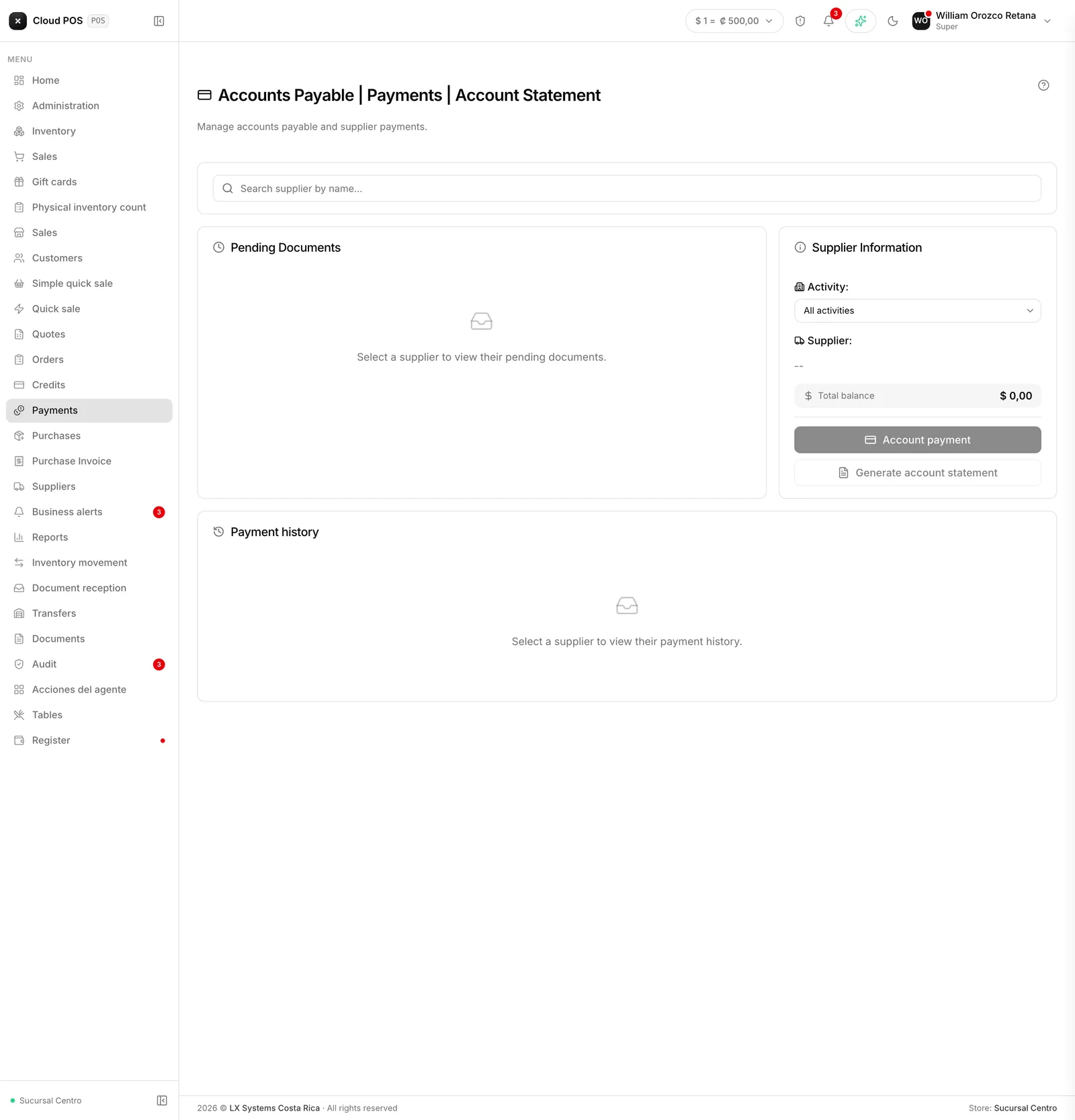
It’s the mirror of Credits, but from the other side of the counter: what you owe your suppliers. Pending documents are purchases you received and haven’t paid yet.
Record a payment
Find the supplier
Their pending purchases and total balance appear. If the supplier has a credit balance — the leftover from a previous payment — it shows at the top in green and gets deducted automatically from the next payment.
Check the purchases you're going to pay
If you choose the “payment for selected purchases” option, the amount calculates itself and locks.
Click Payment on account
Choose the payment method, the amount, and a comment if needed. If you pay in cash, the system calculates the change. If the store also requires cash-count, choose which register the money comes from.
Process it
The payment receipt opens to print or save.
Aging of balances
The table splits what you owe into ranges: not yet due, 1 to 30 days, 31 to 60, 61 to 89, and over 90. It’s useful for knowing who to pay first.
Account statement
The button generates the supplier’s account statement and can send it to your email. It’s what you send when a supplier disputes a balance and you need to agree on the numbers.
Worth knowing
There’s no credit limit for suppliers. Unlike your customers, there’s no cap here that triggers approvals: what’s agreed is the term, set on each purchase.
Reversing a payment doesn’t delete it. It stays in the history marked as voided, which is correct so you can trace what happened.
Paying and reversing depend on a permission. If you see the buttons grayed out, your role doesn’t have it enabled.