Dining room
Menu › Tables
What it’s for
This is the dining room’s board. At a glance, it shows what’s going on with each table, how much has been run up, and how long it’s been open.
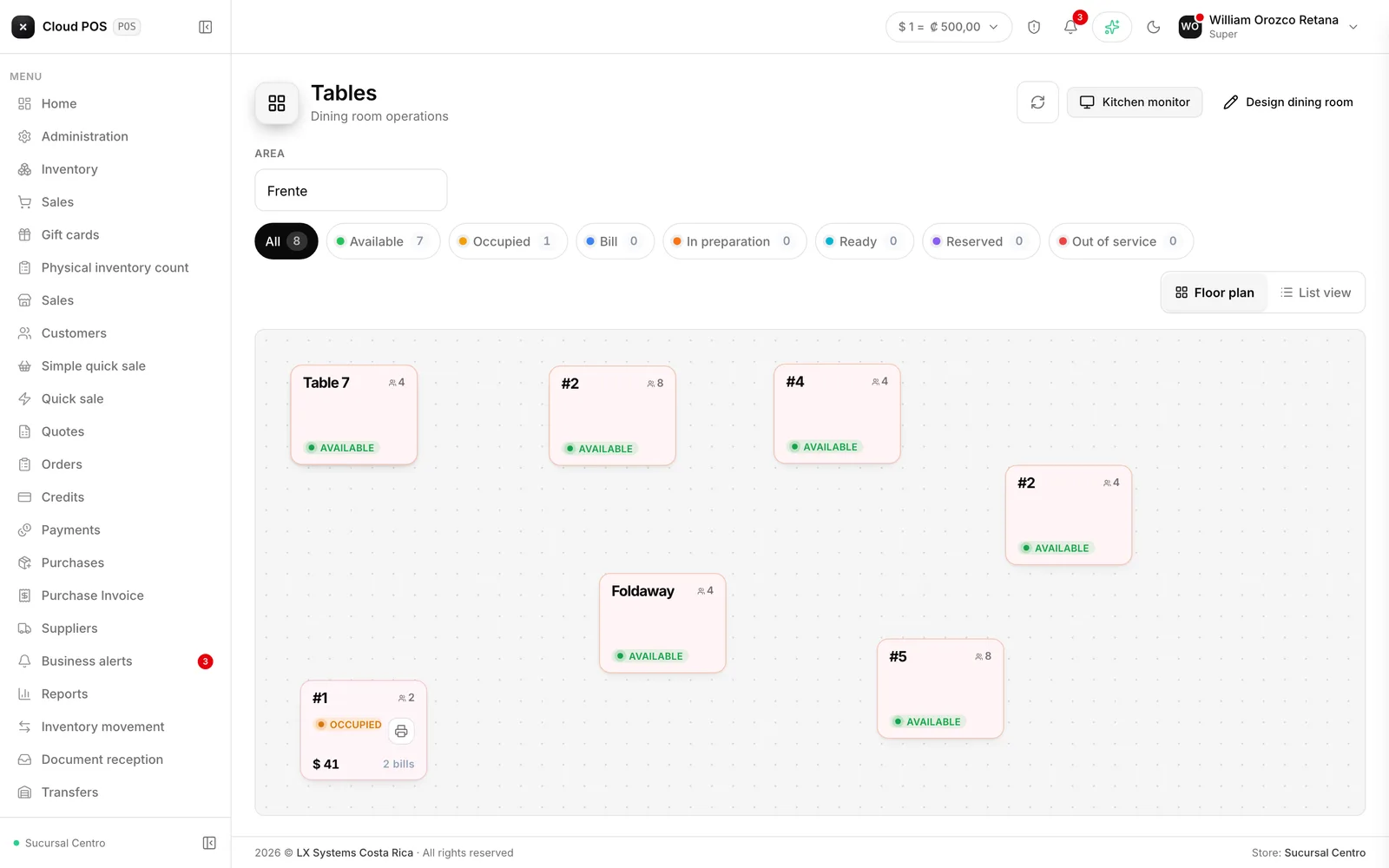
The seven statuses
| Status | What it means |
|---|---|
| Free | Nobody seated |
| Occupied | There’s one or more open tabs |
| Bill | They asked for the bill |
| In preparation | The order is in the kitchen |
| Ready | Something’s ready to serve |
| Reserved | Set aside |
| Out of service | Not in use today |
The chips at the top filter by status and show how many tables are in each one.
Floor plan and list
Floor plan draws each table in its real physical spot, the way it was set up in the designer. It’s for finding your way around the dining room. When you filter, tables that don’t match fade out instead of disappearing, so the map doesn’t change shape.
List shows cards in a grid, more comfortable on small screens, and adds buttons that go straight to Order and Bill.
The system remembers the view you prefer.
What each table shows
Capacity, status, and whether it has an open tab: the customer, the running total, and a timer counting from when it opened. The timer changes color at 45 minutes, and again at an hour and a half, so tables that have been open a long time stand out.
If the table has more than one open tab at the same time — a shared table, with groups that arrived separately and will each pay their own way — the card shows a tab counter instead of a single customer, a single total, and a single timer. Coming into that table from Order or Bill, the system asks which of the tabs you mean.
The bell means there’s an order ready to serve.
Things worth knowing
The screen updates on its own. No need to reload: when the kitchen marks something ready or a tab closes at another register, this screen finds out. When something becomes ready, an alert also shows up.
If the dining room shows up empty, the tables haven’t been set up yet. You do that once, from Design the dining room.
Tapping a table takes you to its order. From the list view, the bill button goes straight to Collect.