Count sheet
Menu › Physical Count › Continue counting
What it’s for
This is the screen where the actual counting happens, product by product, either by scanning the code or by looking it up and typing the quantity by hand.
Counting
Use the Scan or type a code field
Focus stays there at all times and returns on its own after every scan, so a whole warehouse can be walked with a scanner without touching the screen once.
Adjust Add if needed
It’s how much gets added to the total every time a code is read. It defaults to 1. If a case holds, say, 12 units and you’re going to scan the whole case at once, change Add to 12 before scanning it.
Check Last scan
After every code read, it shows which product it added to and what its counted quantity is so far.
Correct by hand if needed
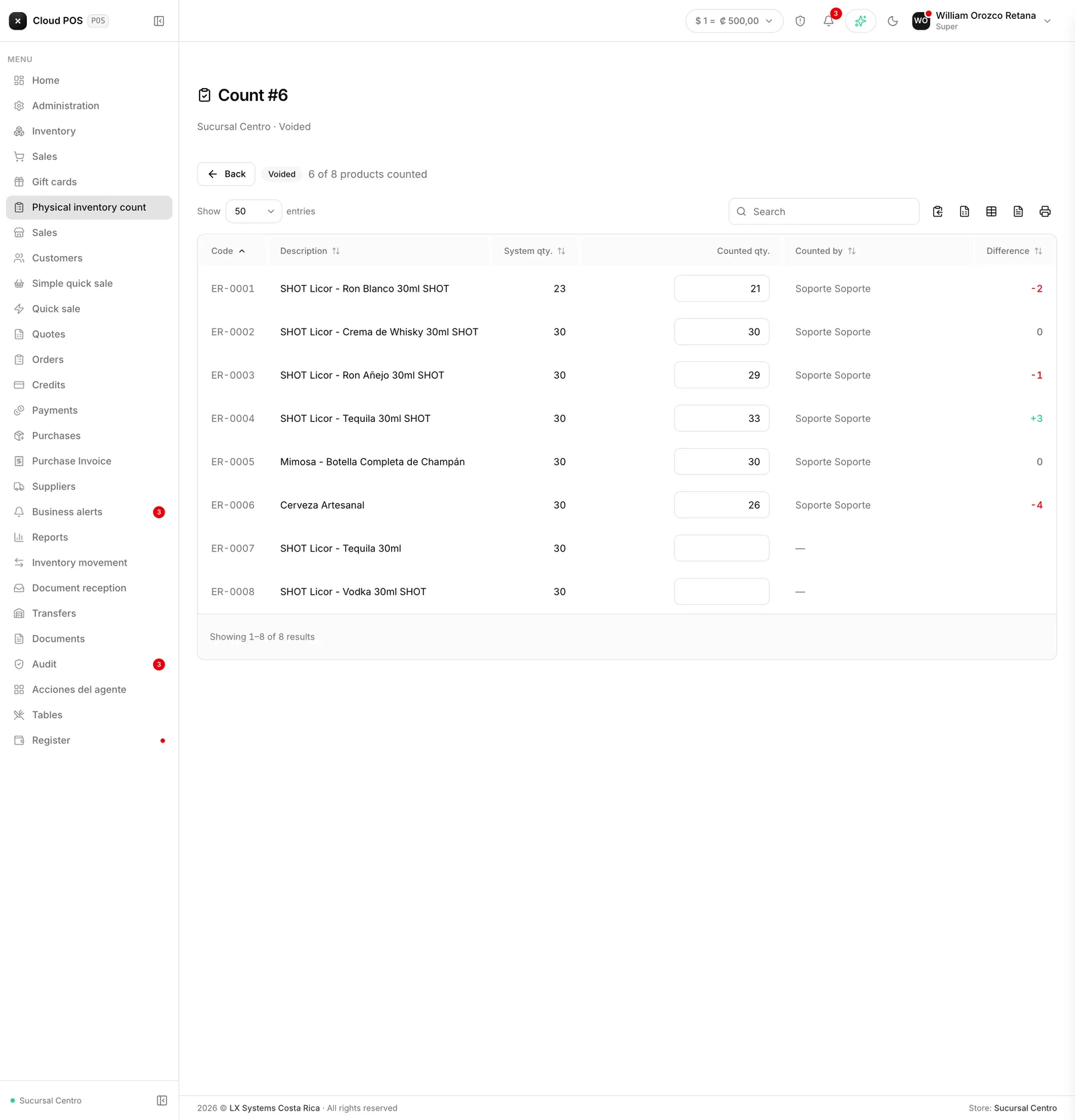
In the Counted qty. column of the table, for any product, without having to scan again.
Save progress
With the Save progress button. The count also saves itself every 30 seconds while you work.
Finish with View variances
Once everything you’re going to count has been counted, it moves on to reviewing variances.
Scanning adds, it doesn’t replace
Every scan of the same code adds to what that product already had counted, it doesn’t replace it. Scanning the same case three times means three more units, which is exactly how counting works in real life: you run the scanner over every case in front of you. If a number needs correcting, edit that line’s cell directly in the table.
Several people counting the same sheet
More than one person can work the same count at once, each from their own device. The Counted by column shows who captured each line, so if two people are counting different areas of the same location, it’s easy to see who took which product and avoid counting it twice.
A single product only gets counted by one sheet
This is different from several people working the same sheet. When there are several counts open at once for the same location, a single product might fall inside more than one of their scopes. Being in scope reserves nothing: what decides it is who counts it first.
The first sheet to capture a quantity for that product keeps it. On every other sheet, the line becomes read-only, with a lock pill showing which count it belongs to and who counted it, so you know who to ask if you need to.
If you try to scan a code that’s already locked by another count, the system warns right away — no need to reach the end of the sheet to find out.
Saving a batch with locked lines doesn’t lose the rest. If, by the time you save progress, another sheet has already claimed one of the lines, that line doesn’t go through, but the rest of the batch still saves, and the warning says how many lines were left out.
The lock releases when that other count closes (its adjustment has been applied) or gets voided (what was captured there is kept for audit, but the product becomes free again). While the count that holds it stays open, the line stays read-only.
Things worth knowing
A line locked by another count isn’t a capture error. It just means another sheet got there first — there’s nothing to report or fix on your end; once that count closes or is voided, the line becomes available again.
Products with a negative quantity come first, and the rest of the sheet stays in alphabetical order. Negative stock is an error that already happened, and this is the chance to fix it. In a blind count the order is alphabetical only: putting the negatives on top would give away the system quantity that a blind count hides on purpose.
If the count is blind, the table doesn’t show the System qty. column or the Difference column while counting is underway — that data isn’t available on purpose, so no one counts toward the number that “should” come out.
Counting zero is data, not a blank. If a product isn’t in the warehouse, count it as zero — that records that it was looked for and not found. A line nobody touched, on the other hand, doesn’t get adjusted when the count closes.
A code that doesn’t appear in the table isn’t part of this count’s scope. The system warns and doesn’t add it — check whether the product has the category or brand that was filtered when the count was opened.
The count saves itself, every 30 seconds, while you work, and also if you switch screens or apps without saving by hand. Even so, it’s worth using Save progress before stepping away from the sheet for a while.
A count that’s already closed or voided can be viewed, but not edited. The scan field and the save buttons don’t appear.