Register
Your user menu (top right) › Open register / Close register
What it’s for
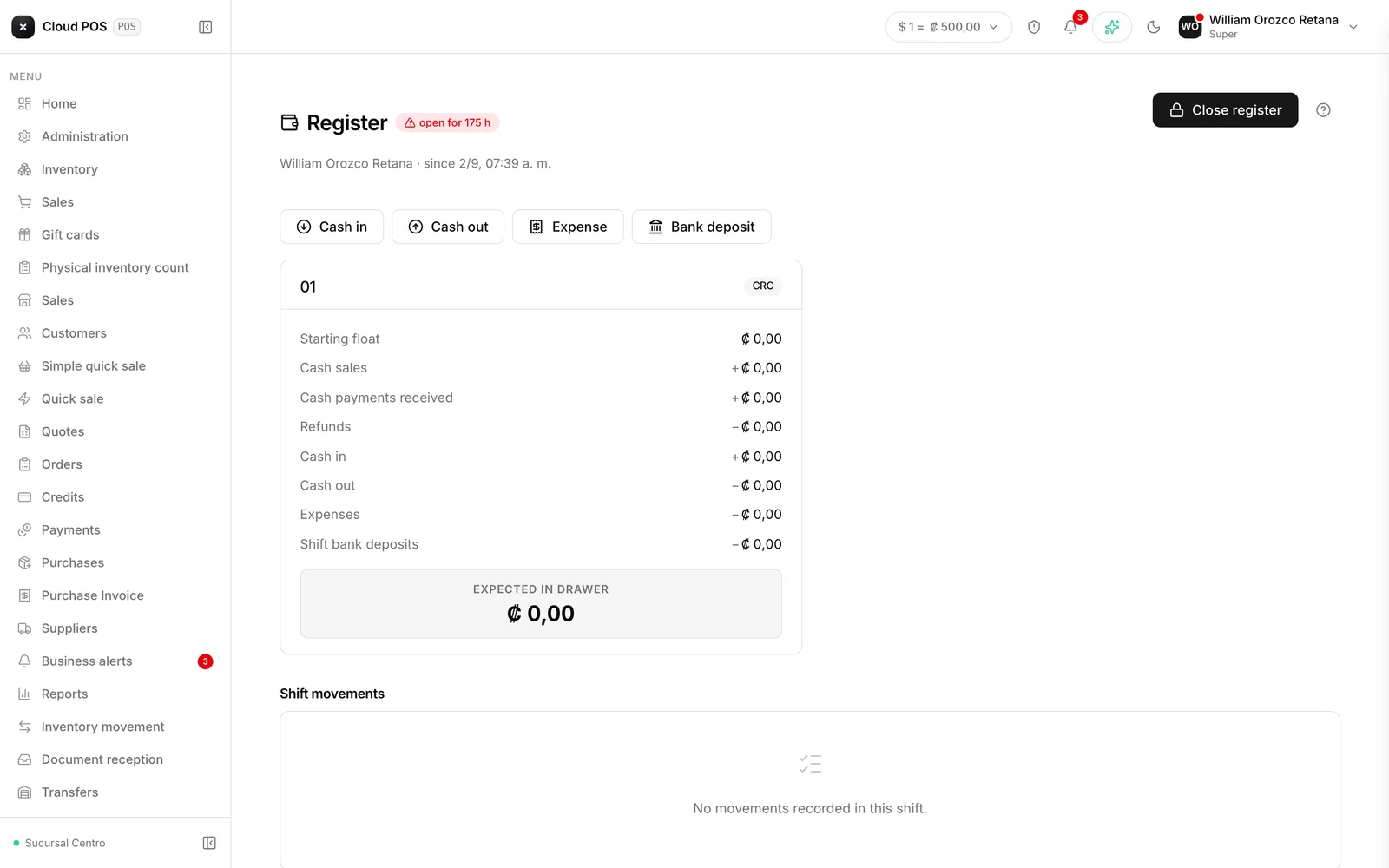
The register controls the cash physically in the drawer. You open it at the start of the shift by declaring how much you’re starting with, cash movements that aren’t sales get recorded against it, and you close it by counting what’s left. The system compares what should be there with what you counted and tells you whether it balances.
It’s different from sales: a card payment adds to what was sold, but it doesn’t put a single colón in the drawer. The register only cares about cash.
Opening the register
Go to Register
If there’s no open shift, the screen tells you and shows the Open register button.
Declare the starting float
Type how much cash is in the drawer right now, for each currency the business handles. That’s the starting point for the cash count.
Confirm
From there, the shift is open, with the opening time on record.
Actually count the float before typing it in. If you declare a number that isn’t what’s really in the drawer, the shortage or overage will show up at closing and there’ll be no way to know whether it was an opening error or something that happened during the shift.
The drawer belongs to the store, not to the person. If someone already opened the register today at this same store, you won’t see the Open register button: you go straight into the shift that person opened, with their float and their movements, and you can keep recording sales and movements right there — no need for each person to open their own. Closing it, though, takes being the one who opened it, or having permission to close another cashier’s register (see below).
Recording movements during the shift
Anything that goes in or out of the drawer that isn’t a sale gets recorded with one of these four buttons:
| Button | When to use it | Example |
|---|---|---|
| Cash in | Cash comes in that isn’t from a sale | You get change passed from another register |
| Cash out | Cash goes out that isn’t an expense | Cash is sent to the safe |
| Expense | Something is paid for with register cash | Buying ice, paying for an errand |
| Bank deposit | Cash is sent to the bank | The day’s deposit |
Every movement asks for amount, currency, and reason. The reason is required on purpose: at closing, a movement with no explanation is indistinguishable from a shortage.
Closing the register
Press Close register
The system moves to the closing panel and shows you, for each currency, how much should be in the drawer.
Count the drawer
Type what you counted. You can do it two ways: entering the total, or using the count by denomination — how many bills of each value — which adds it up for you and keeps the detail on record.
Check the difference
As soon as you type what you counted, the system tells you whether it balances, whether there’s an overage, or whether there’s a shortage.
Set aside the deposit, if it's going to the bank
You can indicate how much is being sent to the bank and how much stays as the float for the next shift.
Explain the difference and close
If it didn’t balance, write the comment. It’s the only thing that will be left tomorrow to understand what happened.
If your business requires it, the mobile app will ask for one more step before the closing is final: confirming with your PIN, signing with your finger, or both — depending on what the administrator turned on. It’s only on the phone or tablet; this step doesn’t show up on the computer. If the PIN doesn’t go through you can try again without losing your count or the signature you already drew; the signature gets filed along with that shift’s cash count.
When closing, the system offers to print the cash count receipt, on thermal paper or in a letter-size view. Print it before letting go of the drawer: if you still miss it, you can pull it up again further down (see “Good to know”).
What’s included in the count and what isn’t
The summary for each currency breaks down where the expected number comes from:
- Add up: the starting float, cash sales, cash payments received accounts, and cash in.
- Subtract: cash out, expenses, bank deposits, and returns.
- Not included: card, transfer, or other payment methods. The system shows those separately, marked as not being in the drawer.
That’s why the expected amount almost never matches the day’s total sales, and that’s fine.
Good to know
A shift open for more than 24 hours is flagged in red. It’s not an error, it’s a warning: if the register has been open more than a day, it almost always means someone forgot to close it, and tomorrow’s count will carry over today’s mess.
A supervisor can close a register at a store they didn’t open themselves. With the right permission, registers left open at their other stores show up on their own Register screen, with a button to close them. Note: it’s no longer “so-and-so’s register” — it’s the store’s drawer — so a coworker ringing up sales right next to you shares the same register you’re already looking at (it won’t show up separately as “someone else’s”); closing it without having opened it also takes this same permission. Either way, the count is signed under the name of whoever closes it, not whoever opened it — the system warns about this before you continue.
You can reprint a cash count you already closed. Below the current shift (or the “No open register” notice) there’s a list of Closed cash counts for the last few days at your store; the print button on any of them pulls up that same receipt again.
Every closing gets a tamper-evident date-and-time seal, whether it’s done from the computer or the phone. There’s nothing you need to do for this — it’s automatic — and it’s what lets someone verify later that the cash count wasn’t touched outside the system.
If you handle more than one currency, each one is opened, counted, and closed separately. Cash in dollars isn’t converted to colones for the count: you count the bill in the currency it came in.
If it tells you that you don’t have permission to use the register for this store, that’s your role’s configuration. The business administrator enables it.