Electronic invoicing
Everything related to electronic receipts lives here: the ones you issue and the ones you receive.
The most important distinction in this module, and the one that confuses people most at first:
| Screen | What it contains |
|---|---|
| Documents | What you sold to your customers: invoices, receipts, and their corrections |
| Document reception | What your suppliers sold you: the invoices they issue to you |
These screens have opposite purposes. Issuing and receiving.
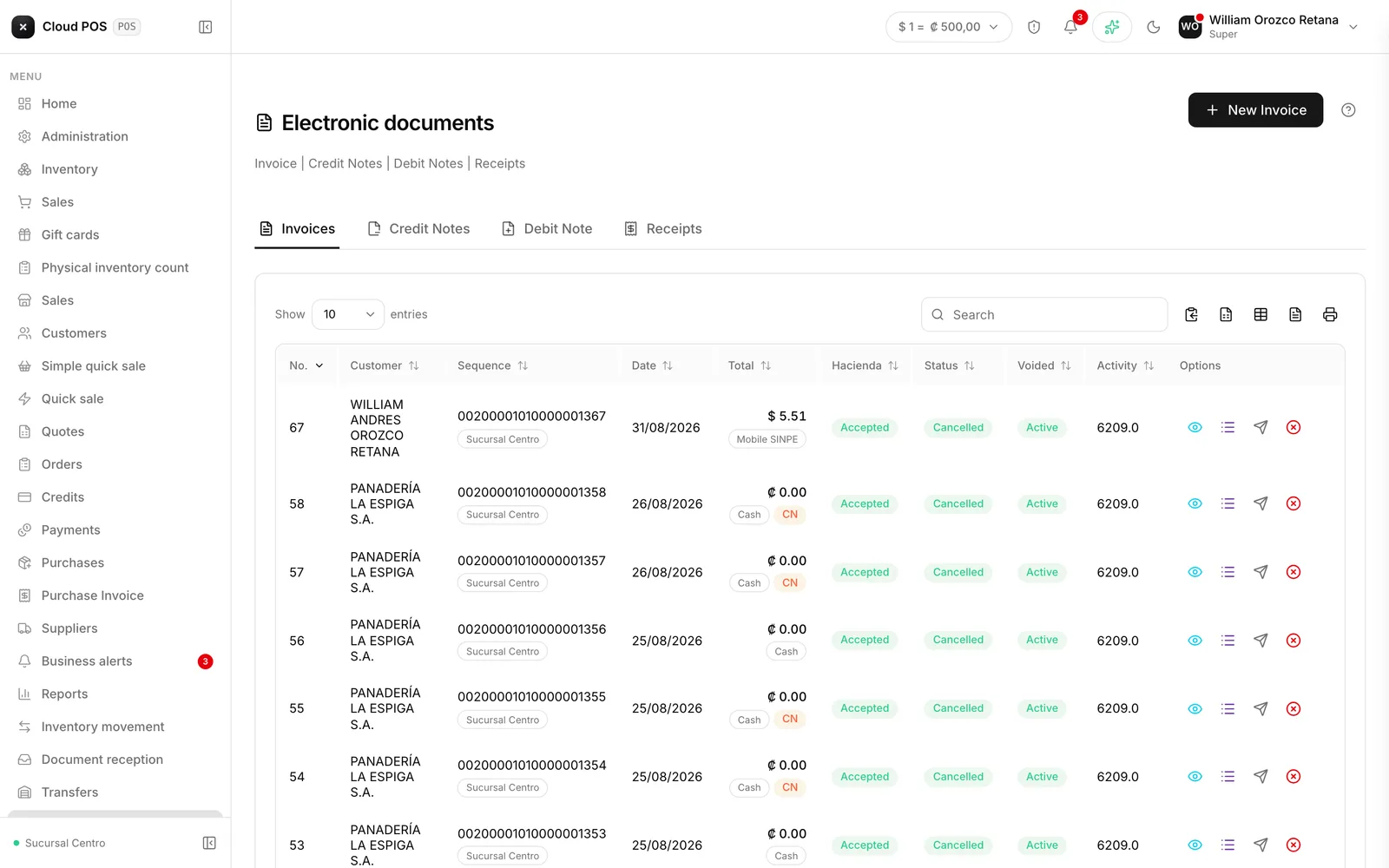
Documents: your sales history
Four tabs: Invoices, Receipts, Credit notes, and Debit Note. Each row shows the document with its total, and the button at the top changes depending on which tab you’re on.
The three lights on every row
This is what raises the most questions. Every document has three independent statuses that don’t determine each other:
| Column | What it tells you | Values |
|---|---|---|
| Hacienda | Whether the receipt was accepted by Hacienda | Accepted · Rejected · Not received · Processing · Not applicable |
| Status | Whether the customer has already paid | Pending · Paid |
| Voided | Whether the document is still valid | Active · Voided |
An invoice can be accepted by Hacienda, pending payment, and active, all three at the same time. That’s normal.
If the status is Rejected, hover over the badge: it shows you the exact reason Hacienda gave, without leaving the screen.
Process isn’t the same as Reprocess
Process — when it says “Not received”
Retries sending the same document to Hacienda. It doesn’t change anything about the receipt, it just sends it again.
Reprocess — when it says “Rejected”
Generates a new document with the current data and sends it. It doesn’t fix the rejected one: it creates another. It’s important to be clear on that before you tap it.
Reprocess only exists on Invoices and Receipts. Credit notes and debit notes don’t have that button: if one gets rejected, the only option is to void it.
Voiding creates a credit note
Voiding an invoice or a receipt always automatically produces a credit note, which will show up in its tab. Voiding a debit note does too. Voiding a credit note, on the other hand, can’t be undone.
Credit notes and debit notes
Neither one gets created from scratch: they always start from an earlier document that you have to look up first by its consecutive number.
- Credit note — corrects downward. It starts from an invoice or a receipt. It’s used for returns, later discounts, or amount errors.
- Debit note — corrects upward. It always starts from a credit note already issued; the type is fixed and can’t be changed.
When you look up the original document, the system loads only the customer, the currency, and the products: you choose which lines to credit and in what quantity. You can’t type in the customer by hand — it comes from the original document.
Both screens save a draft automatically, so you can leave it half-done and pick it back up later.
Once you generate it, the note is done, but sending it to Hacienda can take a while. If you see it as Not received in the tab, that’s not an error: check back later, or use Process to retry sending it.
Reception: your suppliers’ invoices
When a supplier sells to you, they send you their electronic invoice file. Hacienda expects you to respond whether you accept it or reject it — that’s what happens here.
Upload the files
Drag the invoice files into the box, or tap to browse for them. It only accepts electronic invoice files, up to 5 MB each.
Check the Pending tab
That’s where the uploaded invoices sit, with the issuer, date, tax, and total.
Select and process
Select the ones you’re going to accept and tap Process selected. That tells Hacienda you received that purchase.
Discarding deletes permanently. It’s not “archiving” — the document disappears.
Things worth knowing
If your business has more than one point of sale, each row in Documents shows a chip with the issuing point of sale under the consecutive number, across all four tabs, and the search box at the top also finds documents by point-of-sale name.
If your business is under the simplified regime, the credit note and debit note tabs don’t appear for you. That’s not an error — that regime doesn’t issue them.
Grayed-out buttons mean you don’t have permission, not that something’s broken. Voiding, processing, and reprocessing depend on your role. If you see them grayed out, your business administrator can enable them.
A receipt has no customer. That’s why its tab doesn’t show that column, and why the button says “New sale”: the receipt gets created from the sale screen, it doesn’t have a screen of its own.
“Rejected” means different things on each screen. On Documents, it’s Hacienda rejecting a receipt of yours. On Reception, it’s you rejecting a purchase from a supplier.