New count
Menu › Physical Count › New count
What it’s for
Opens a new count. It’s the single most important moment of the whole physical count: on opening, the system freezes the system stock for everything about to be counted, and that snapshot is what the adjustment gets calculated against, no matter what sells while the count stays open.
Opening a count
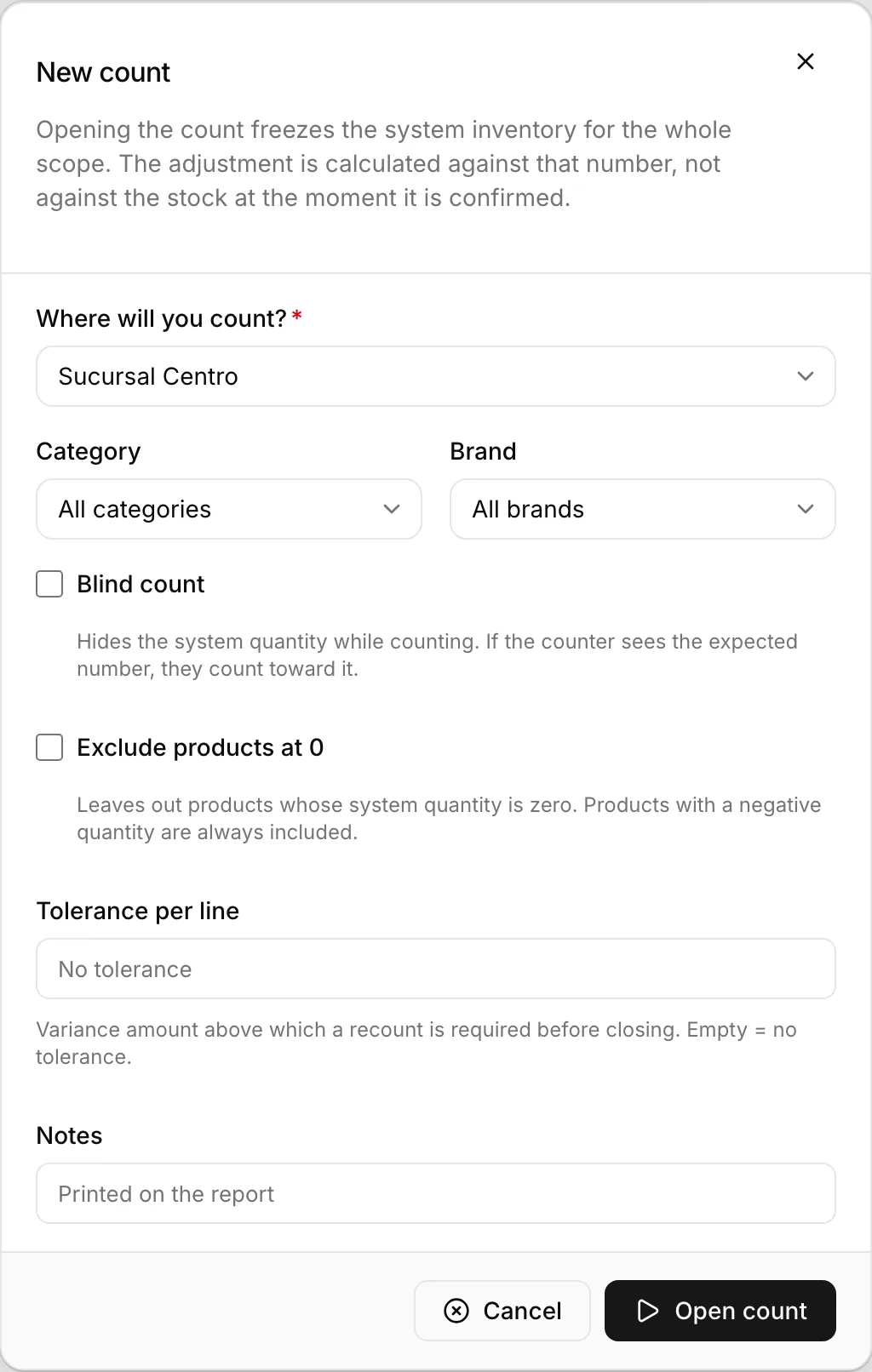
Choose where you'll count
A point of sale or a warehouse. Several counts can be open at once for the same location — what can’t be repeated is you yourself having two active counts at the same time.
Narrow the scope, if needed
By category or by brand, to count only part of the catalog instead of everything.
Decide whether the count is blind
It’s off by default. See below for when it’s worth turning it on.
Decide whether to leave out products at 0
Exclude products at 0 trims the sheet down to what the system says is actually there. It’s off by default.
Set the tolerance per line, if it applies
The variance amount above which a recount will be required before closing. Leave it empty if you don’t want that control.
Add notes, if you want
They print on the closing report at the end.
Press Open count
From here the count exists as a document, and counting can start from the count sheet.
Blind count
Blind count hides the quantity the system has on record while counting is underway. It’s off by default, because the most common use of this module is fixing inventory, and there seeing the expected quantity saves half the work.
Turn it on when the physical count is an audit: if whoever is counting sees the number that “should” come out, they count toward that number, on purpose or without realizing it. With the blind count on, the number isn’t just hidden with a visual trick — it isn’t sent to the counter’s screen at all. The full comparison only shows up once you reach the variances screen.
Exclude products at 0
A large catalog usually has hundreds of products at zero that nobody is going to go count. Exclude products at 0 leaves them out, so the sheet only carries what the system says is actually there.
Products with a negative quantity are always included, whether the box is checked or not: they’re precisely the ones that need fixing.
What you give up by turning it on is the ability to record an overage for a product the system holds at zero. If you’re counting a whole warehouse looking for exactly that kind of surprise, leave it off.
Tolerance per line
It’s the variance amount, on a single product, above which the system will require that line to be recounted before letting the count close.
Leaving it empty means there’s no such control: any variance, no matter how large, can be closed right away. Setting an amount is what keeps an expensive capture mistake — an extra digit typed, one product mixed up with another — from entering inventory without anyone reviewing it first.
Things worth knowing
The scope can’t be changed once the count is open. Where you count, which category or brand, whether it’s blind or not, and whether products at zero are left out, are all fixed from this moment on — so it’s worth double-checking them before pressing Open count.
Notes aren’t just for internal use: they print on the closing report generated when the count is closed, so it’s worth writing something useful for whoever reads it later.
The limit is per person, not per location. If you already have an active count, it has to be closed or voided before opening another one — but someone else can open their own count on the same warehouse or point of sale at the same time, with their own scope.
The scope can overlap with another open count’s. If another count at the same location already counted some of the products about to enter the scope being set here, those lines will show up locked on the sheet from the start — see Count sheet.