New sale
Menu › Sales
What it’s for
This is the full invoicing screen. Use it when the sale needs more than tapping products and collecting payment: line discounts, exemptions, a specific economic activity, or combining the payment with a gift card.
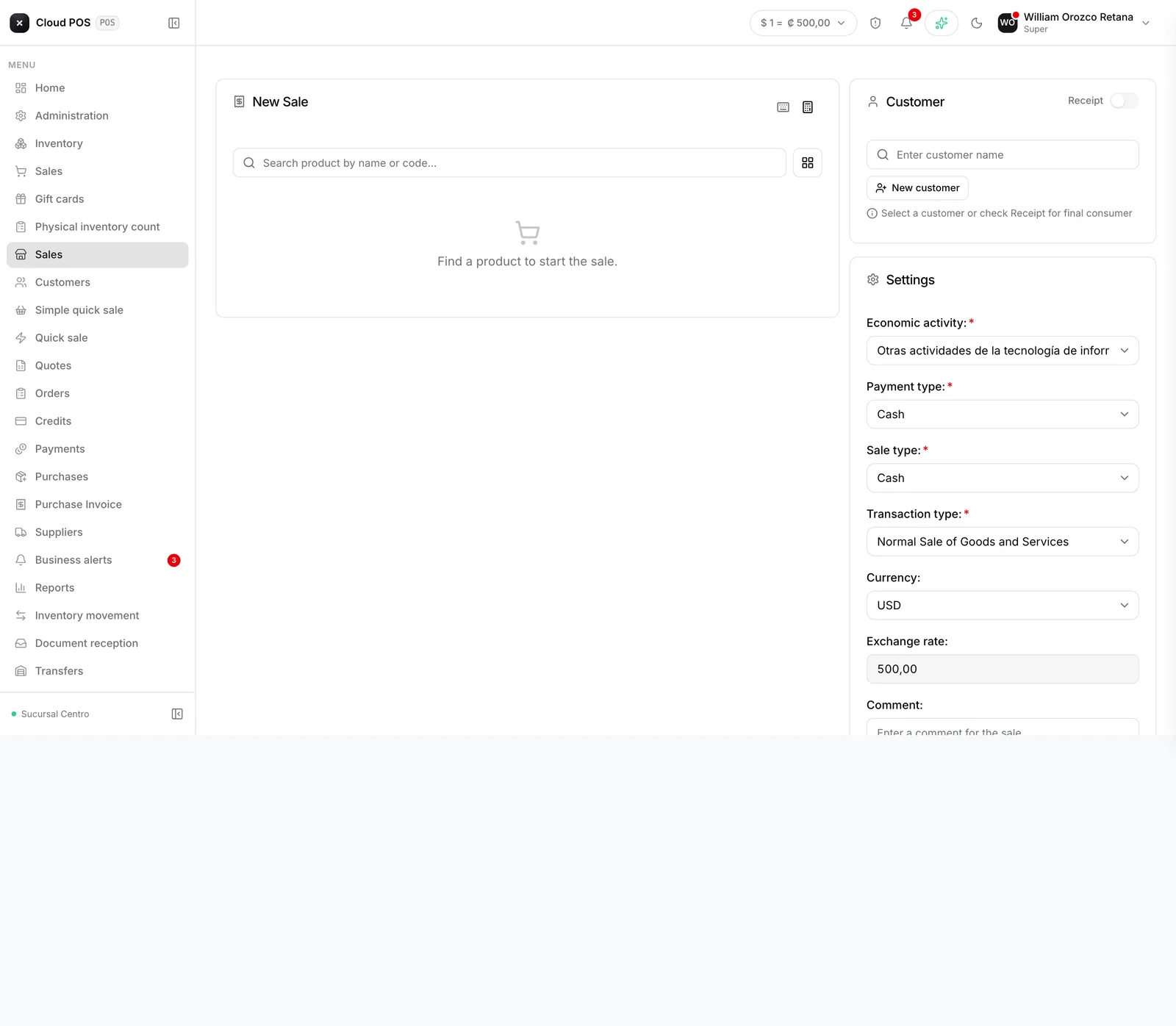
Issuing an invoice
Choose the customer
With an identified customer you get an invoice; without one you get a receipt. Both are valid receipts. If the customer belongs to a category with a rate set up, a notice shows their default discount.
Add the products
By name, by code, or by scanning. If the customer has a category rate, each line comes in with that discount already applied. Each line also has its own quantity, price, and discount.
Apply an exemption, if it applies
If the customer has an active exemption on file, the system offers it.
Review the settings
Economic activity, payment method, and sale type. If it’s on credit, the term.
Collect payment
Payment can be collected with a single method (cash, card, transfer…), or split across several — see Split payment. If the customer has a gift card with balance, it can also be combined: the card covers part of it and the rest is charged to the method chosen.
Good to know
Changing the price or giving a discount depends on permissions. If the fields are locked, your role doesn’t have them enabled. Also, some payment methods don’t allow discounts even if you have the permission.
The category discount can be moved, within a range. It isn’t fixed: if your role allows it, you can raise or lower it up to the limit the customer’s category authorizes.
The draft saves itself. A sale left half-finished stays in “Drafts” and can be picked up later.
Never issue an invoice with a made-up ID. Hacienda rejects it and the document becomes unusable. If the customer doesn’t give their details, issue a receipt instead.
Issuing has two parts. The receipt is recorded and then sent to Hacienda. That’s why it can briefly show up marked “Pending” in Documents: that’s normal, and it resolves itself in seconds.