Customer categories
Menu › Customers › Categories tab
What it’s for
Classifies your customers by type: wholesale, institutional, frequent. It’s used to search and filter them in the Customers list, and each category can also carry its own price policy: a discount that applies on its own, with nobody needing to remember it, to every customer in that category when invoicing.
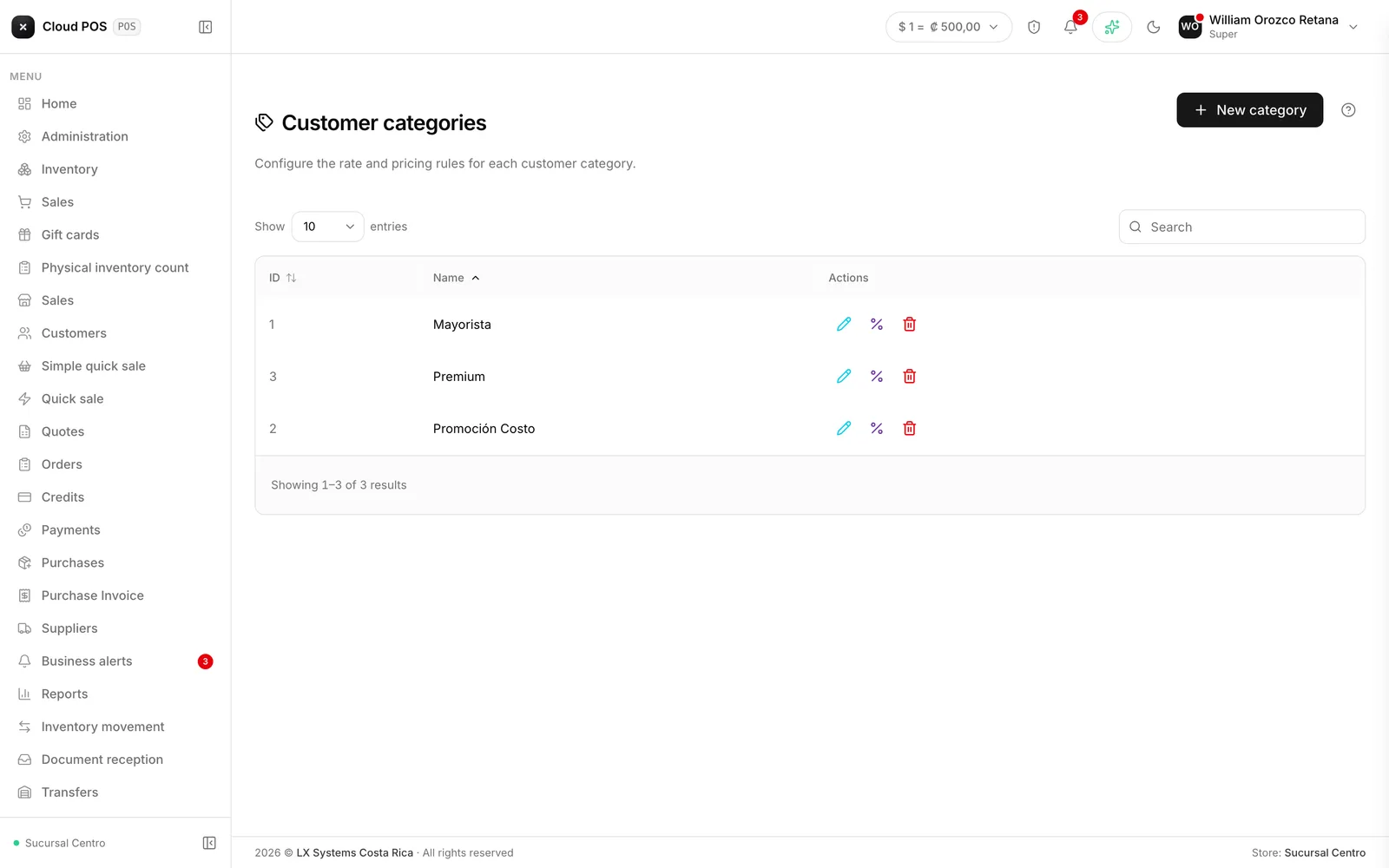
How it’s managed
It’s not in the main menu: you get to it through Customers and the Categories tab.
Press New category, type the name, and save. That creates the category as a plain label. For it to also change the price, open an existing category and press its Price policy button. It opens as a full screen, not a popup, so it’s comfortable to set up from a tablet too.
The price policy
The base discount
This is the percentage applied to the whole catalog when the customer belongs to that category. A wholesale customer with a 15% base discount automatically pays 15% less on any product that doesn’t have a rule of its own.
Pricing mode: discount or cost plus margin
By default the mode is percentage: a % is discounted off the list price.
The cost + margin mode changes the logic: instead of starting from the list price, the sale price comes from the product’s cost plus the margin you set. It’s for categories where what was agreed isn’t “so much percent off”, but “cost plus a fixed profit” — a partner or a channel with that kind of arrangement.
Scope rules: when a product needs different treatment
The base discount covers the whole catalog, but you may need an exception: that wholesale customer has a different price for one specific brand, or gets no discount on an entire product category. That’s what scope rules are for: rows that override the base rate for a specific product, subcategory, product category, or brand.
When more than one rule could apply, the most specific one wins:
product › subcategory › product category › brand › base discount
If no rule matches the product being sold, the category’s base discount applies.
The range the cashier can move
Every rate has an editable minimum and maximum. That’s how far the cashier can move that discount when invoicing, above or below the default value — for a regular customer who’s earned a bit more today, without opening the door to any number at all.
Respecting the payment method’s permission
Some payment methods are set up to never allow discounts, no matter who’s invoicing. The price policy has a switch to decide what happens at that crossing point:
- On (the default): the category’s discount only applies if the payment method used in that sale allows it. If it doesn’t, that sale charges list price.
- Off: the rate agreed with the customer always applies, regardless of the payment method used to collect it.
Setting up a rate
Open the category and press Price policy
From the Customer categories catalog.
Choose the pricing mode
Percentage discount, or cost + margin.
Set the base discount (or margin) and the editable range
The default value has to fall within the range you define.
Add scope rules, if you need exceptions
Choose the scope (product, subcategory, category, or brand), search for the reference, and set its own value and its own range.
Decide whether it respects the payment method's permission
Leave it on unless the agreed rate must always apply.
Save
The changes take effect right away on every new sale.
How it looks when selling
When you choose the customer on any sale screen, a notice shows up with their category and what applies by default — for example, “15% discount by default”. The category badge can be tapped to see the full detail: the range the discount can move within, and whether there are specific rules by product, brand, or category.
Lines come in with the category’s discount already applied, and the cashier can move it within the allowed range. It works the same way in Sales, in Quick sale, in Simple sale, and in Quotes and Orders.
Things worth knowing
You can’t delete a category that’s in use. You have to reassign the customers using it first.
A category with no rate configured is still just a label. The base discount starts at 0% with no rules, so a new category changes nothing until you set it up on purpose.
The category’s discount is the default rate, not a ceiling. If your role has discount permission and the payment method allows it, you can still move the number within the range the category allows.