Quick sale (touch)
Menu › Sales
What it’s for
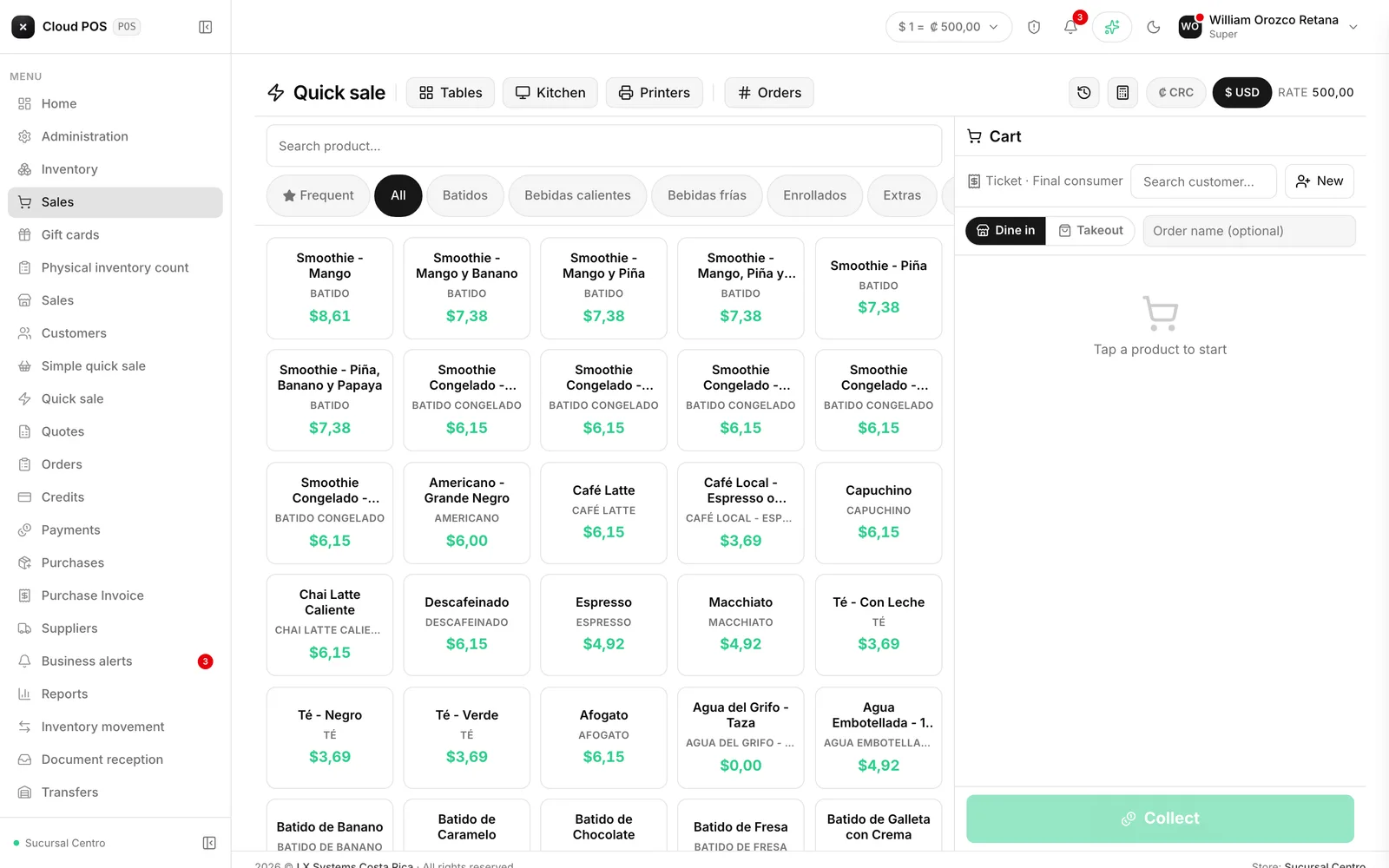
This is the counter screen. It’s built for selling fast with your finger: tap the product, it enters the cart, collect payment. It issues an electronic receipt. Built with cafes and restaurants in mind, it also acts as the kitchen order screen when the business works with tables.
Selling
Tap the products
They’re grouped by category. You can also search them by name or scan the barcode. The first category in the row is Frequent: it builds itself from that store’s best sellers, with nothing to set up.
Adjust quantities if needed
Each line in the cart has plus and minus buttons.
Choose the customer, if it applies
With an identified customer you get an invoice; without one you get a receipt. Both are valid with Hacienda. If the customer belongs to a category with a rate set up, a notice shows their default discount and the lines come in with that discount already applied — see Customer categories.
Press Collect
Choose the payment method (cash, card, transfer…). If the customer has a gift card with balance, it can be combined with that method: the card covers part of it and the rest is charged to the method chosen. And if the payment is split across several methods — part cash, part card — see Split payment.
Combos with one tap
A combo built in Packages is tapped just like any other product: it enters the cart at its fixed price, with tax already included in the preview, and the system deducts each of its components from inventory separately. If any of its components goes to the kitchen, the whole combo sends a kitchen order without marking anything extra.
“The usual”: repeat a customer’s order in one tap
With the customer selected, a button loads their entire last purchase into the cart at once, extras included. It’s for the regular customer who orders the same thing every day — no more looking up each product one by one.
Reprint a recent sale without searching for it
The screen’s header shows the last five sales of the day, and you can reprint the receipt for any of them with a tap, without going all the way to the documents list.
Extras and modifiers
If the product has options configured — sauces, extras, “no onion” — tapping it opens the list to choose them. Options that add a charge add to the total; options to remove something are only a note for whoever prepares it. In the cart, a dish’s extras show up inside the same product card, right below it — not as separate lines scattered through the list — so you can see at a glance which extra belongs to which dish.
Dine in or to go
Each dish in the cart can be marked Dine in or To go by tapping its button, and right there you can leave a free note for the kitchen. On a mixed order — part eating in, part to go — the kitchen order comes out with each dish labeled, so the kitchen doesn’t have to guess what goes on a plate and what goes in a to-go box.
If the business charges a service fee, that fee only applies to what’s marked Dine in: dishes marked to go are automatically excluded, and the receipt reflects that difference dish by dish.
On tablet and phone
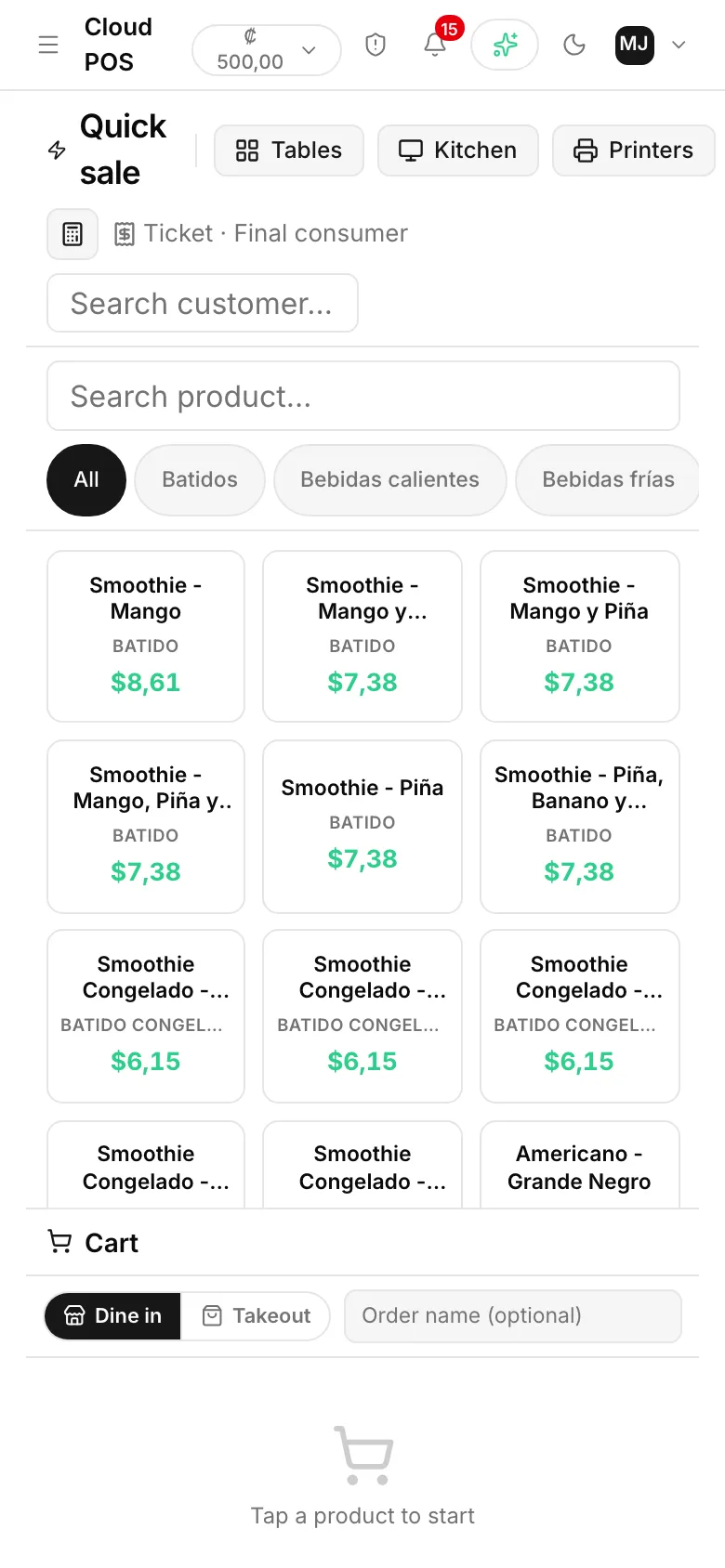
The same screen rearranges for small screens: the catalog on top and the cart below, with bigger buttons for your finger.
With tables active
With Dining room active, this same screen is the order: coming in from the dining room, it asks how many people sat down first — it’s required, the table won’t open without it — and the cart belongs to that table. When you collect payment you can add a discount in the same step, just like at the counter, and a tip too, if the store has it turned on (it comes off by default; it’s turned on per store from Administration › Stores). Combos can also be sent to a table or charged on its bill, the same as a standalone product.
An order left half-finished isn’t tied to a single device. Any tablet or phone at the same store can pick it back up, so someone can start the order at a table and a coworker can finish it from a different device.
When you collect a table’s bill, payment can also be split across several methods — see Split payment — just like at the counter.
More than one bill at the same table
A shared table — several groups that arrived separately and will each pay their own way — can have more than one open bill at the same time. Coming into a table like that, the system asks which bill you mean; the same happens when you send an order to that table or go to print the bill. From inside the order you can switch bills without leaving the table, and also discard a bill that was opened by mistake, as long as it has nothing pending. On the dining room board, that table shows a bill counter instead of a single total and timer — see Dining room.
Splitting the bill
When collecting payment, the Split button changes the line list: each one can be checked off separately, and if it has more than one unit a counter shows up to choose how many to charge now — “2 coffees, paying for 1” — leaving the rest pending for later. The total at the top switches to showing what’s selected, not the whole bill, while splitting is active.
How many people are in the venue
Besides the headcount for each table, the screen’s header shows the total number of people seated across the whole store right now — the sum of the headcounts of every occupied table.
Good to know
The cart survives an accidental close. If the screen crashes or you close the browser, when you come back it lets you know it restored the cart.
If the store requires the register to be open, it won’t let you collect payment without opening it. That’s a store setting, not a user setting.
If the store generates kitchen orders, when you collect payment or send it, the order shows up on the kitchen monitor.
The catalog updates itself. A new product, a price change, or a category change doesn’t require leaving and coming back into quick sale to see it: the screen catches up on its own, right away.
A combo marked “to go” still charges the service fee, if the business has it turned on. Excluding the service fee for takeout works per individual dish; a combo can’t be split by component.