Customers and collections
Who your customers are, how much they owe you, and who authorizes it when someone goes over their credit limit.
| Screen | What it’s for |
|---|---|
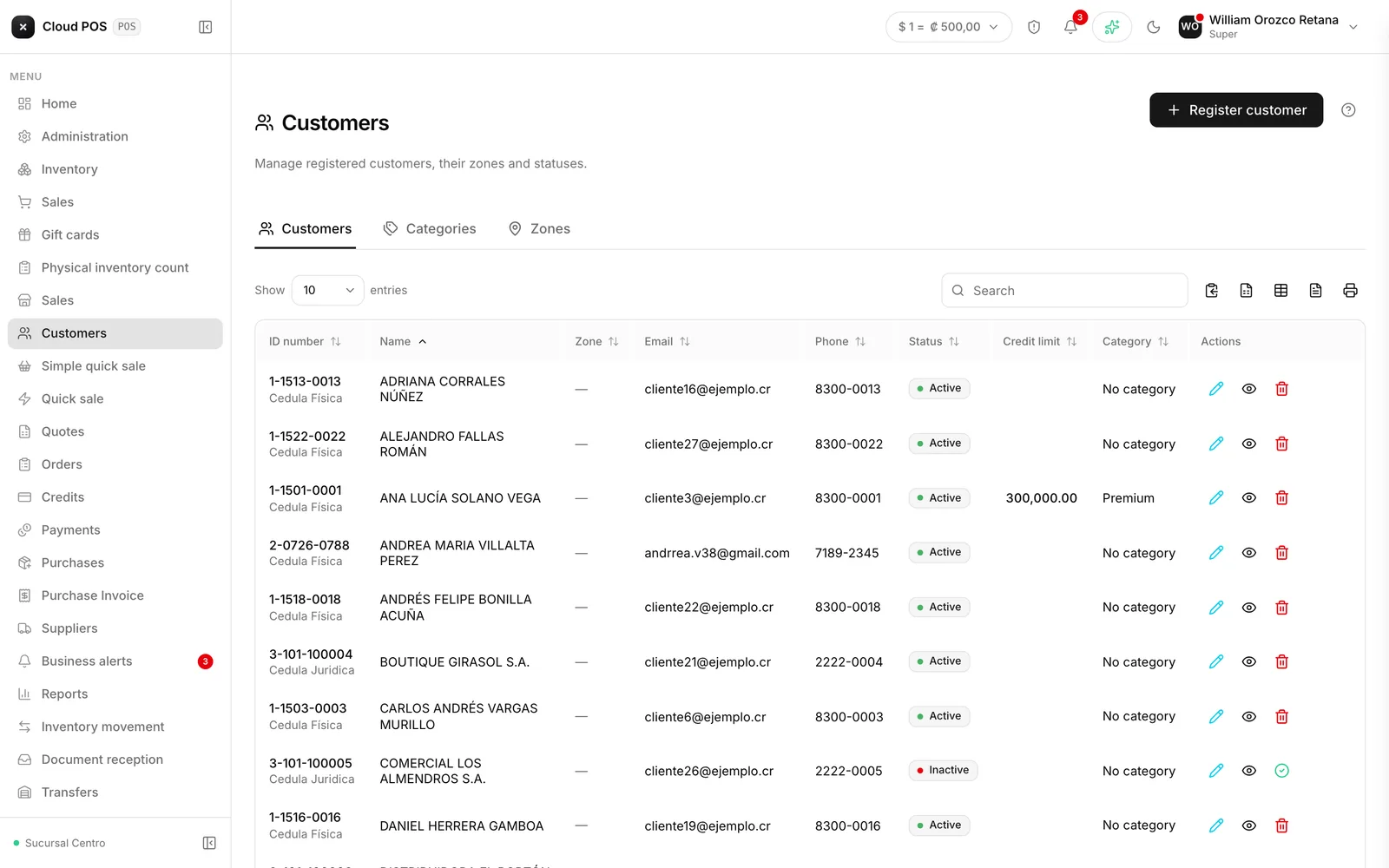
| Customers | The customer book: details, category, zone, credit, and tax exemptions |
| Credits | What customers owe you for credit sales, and their payments |
| Approvals | Authorize or reject credit sales that exceed the credit limit |
Watch out for the name “Payments”. It sounds like customer collections, but that screen is the opposite: what you owe your suppliers. It’s in Suppliers and purchases.
The customer record
When you register a customer, enter the ID number first: when you leave the field, the system checks it against Hacienda and fills in the name and economic activities for you. If that ID is already registered to another customer, it won’t let you save it — that’s how duplicates are prevented.
You can save several phone numbers and emails, the zone, the category, and a credit limit, which is the cap on what that customer can owe. If the category has a price policy set up, that customer invoices with their discount already applied.
Tax exemptions
A tax exemption is an official permit that lets you sell to that customer without charging tax, or charging less. You turn it on with the checkbox on the record, and register the type, the document number, the institution that issued it, the percentage, and the issue and expiration dates.
In the Search by Document No. field, type the number and press Search: the system checks directly with Hacienda and fills in the data. If the exemption it finds doesn’t belong to that customer, it rejects it.
Credits: what they owe you
Search for the customer and the panel shows the total balance. If a credit limit is set, you also see how much has been used, how much is left, and an Up to date or Exceeded badge.
The screen has four sections:
- Pending documents — unpaid credit invoices. The days column turns red when four days or fewer are left before the due date.
- Aging of balances — the debt broken down by range: not yet due, 1 to 30, 31 to 60, 61 to 89, and over 90 days.
- Payment history — payments made, each one active or voided.
- Account statement — generated and can be sent to the customer’s email.
Recording a payment
Check the invoices you're paying off
If you choose the “payment for selected invoices” option, the amount is calculated automatically and locked.
Choose the payment method and the amount
If it’s cash, enter how much they paid you and the system calculates the change.
Process it
When it’s done, the payment receipt opens, ready to print.
If a payment was recorded by mistake, Reverse payment voids it. The payment doesn’t disappear from the history: it stays marked as voided, which is correct for traceability.
Approvals
When someone tries to sell on credit to a customer who’s out of room, the sale isn’t lost: it sits in this queue waiting for authorization.
Each request shows the customer, the sale amount, their limit, the balance they already had, and how much they’re going over. You approve or reject it, with an optional comment that’s saved along with the decision.
Only administrative roles see it. And this entire flow can be turned off from Administration: if your business doesn’t use it, the queue never fills up.
Things worth knowing
Categories and zones aren’t in the menu. They’re managed from tabs inside Customers. If you look for them in the main menu, you won’t find them.
You can’t delete a category or a zone that’s in use. You have to reassign the customers using it first.
Deactivating a customer doesn’t always delete it. Depending on its history, the system deactivates it instead of removing it, so it doesn’t break invoices already issued.
The credit limit is optional. A customer with no limit set never triggers approvals — they can owe without a cap.