Sales and checkout
This is the most-used module. A normal day looks like this:
Open the register
The cashier declares how much cash they’re starting with. You can’t collect cash without an open register. See Register.
Collect payment
Depending on the business, one screen or another is used — the difference is below.
Close the register
At the end of the shift, the drawer is counted and the system says whether it balances. See Register.
Which sale screen applies to you
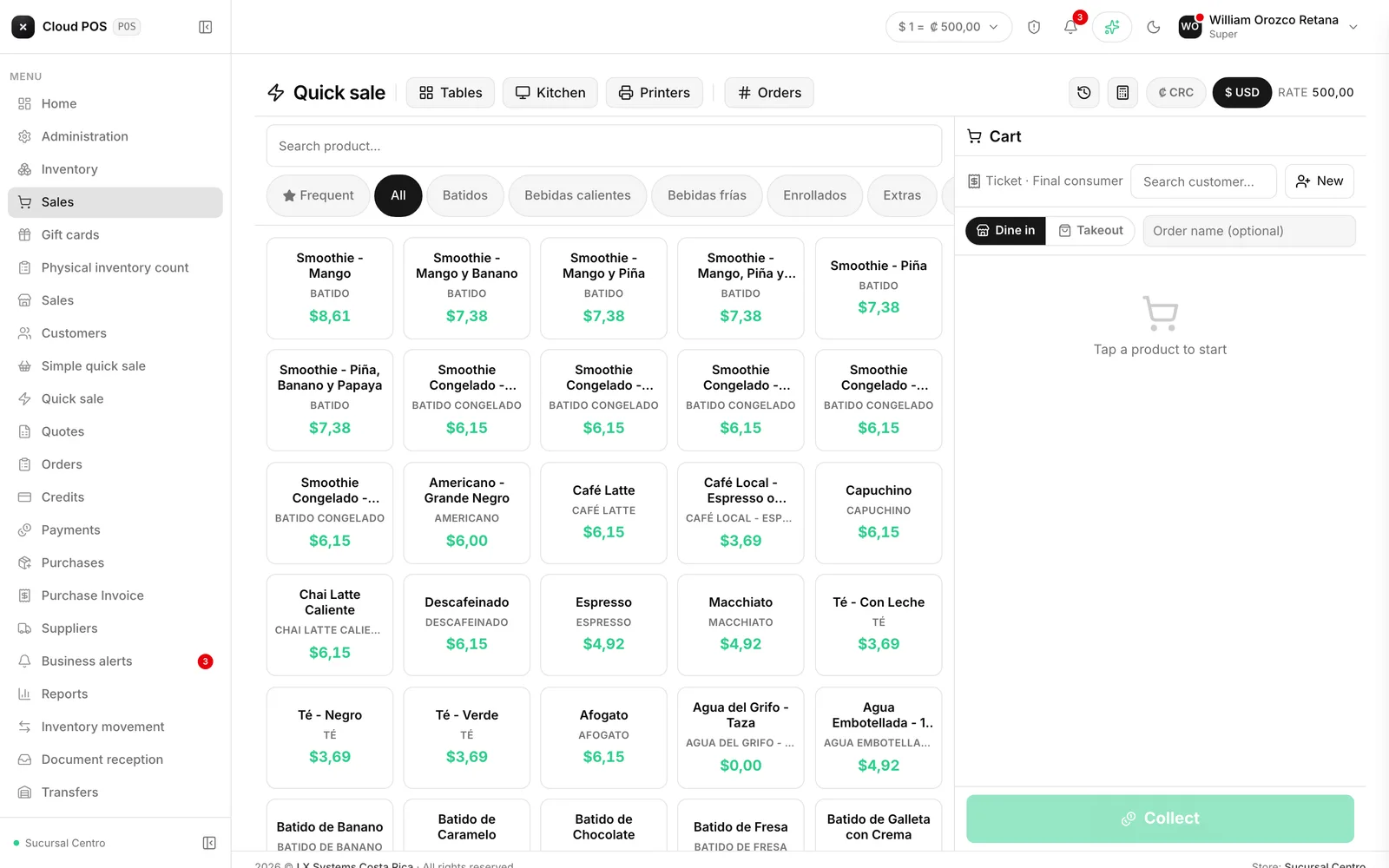
The system has several ways to collect payment because not every business sells the same way. Your system only shows the ones that apply to you.
| Screen | What it’s for | Goes to Hacienda? |
|---|---|---|
| Quick sale (touch) | Counter sales on a touchscreen: tap the product and collect | Yes |
| Simple quick sale | Equally fast, but for payments that don’t need a fiscal receipt | No |
| New sale | More detailed invoices: line discounts, exemptions, combined payment with a gift card | Yes |
| Quick sale | Record a quick payment without issuing a fiscal receipt | No |
Good to know
- The two “simple” screens don’t issue an electronic invoice. They’re for keeping track of what came in, not for complying with Hacienda. If the sale needs a receipt, use Quick sale (touch) or New sale.
- The register and the sale are different things. The register controls the cash in the drawer; the sale records what was sold. A card payment adds to sales but not to the drawer.
- If you don’t see one of these screens in your menu, it’s because your role doesn’t have it enabled. Check with your business administrator.